Automation
BotDrop’s automation features require Shizuku (for system-level permissions) and u2 service (for UI automation). This guide walks you through enabling them without a computer.
Step 1: Open Automation Panel
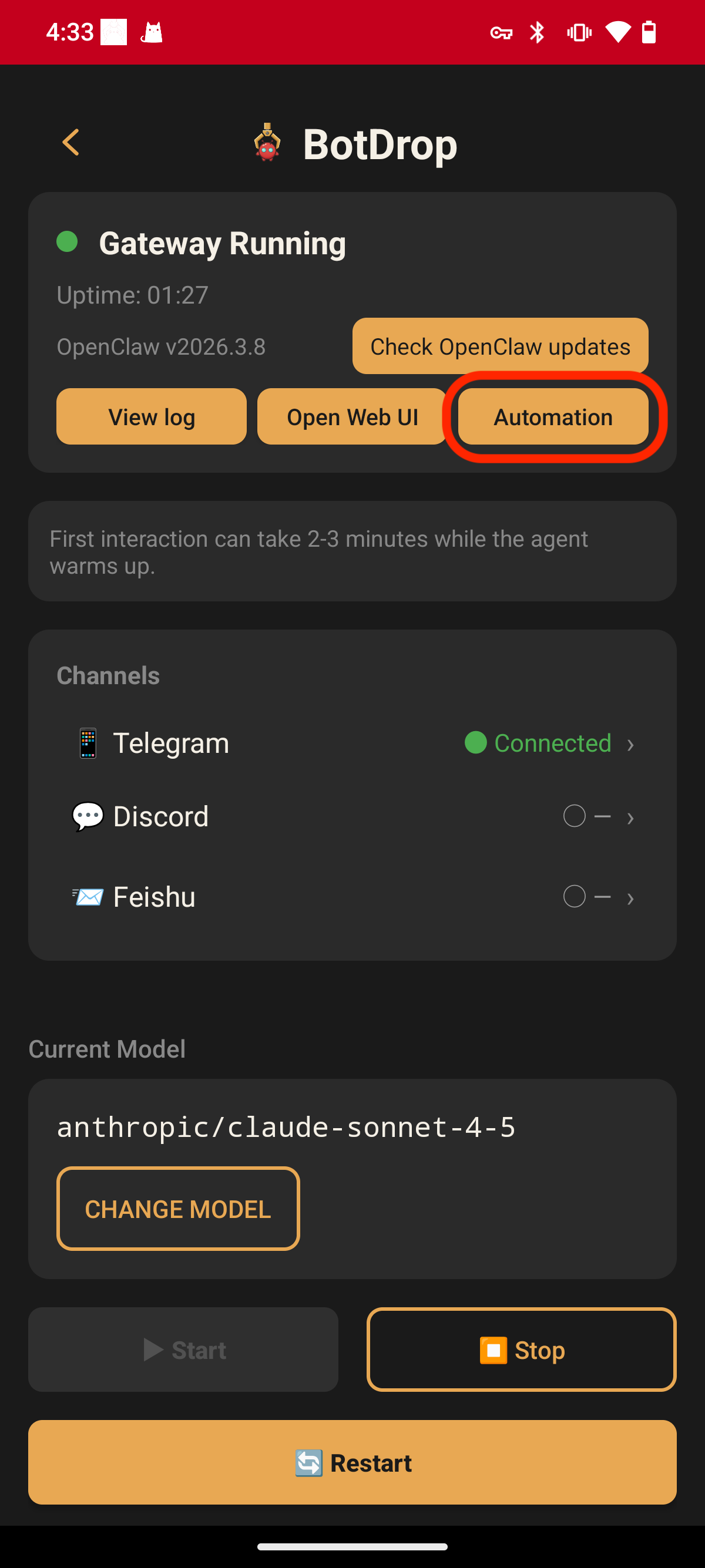
Section titled “Step 1: Open Automation Panel”From the BotDrop dashboard, tap the Automation button.
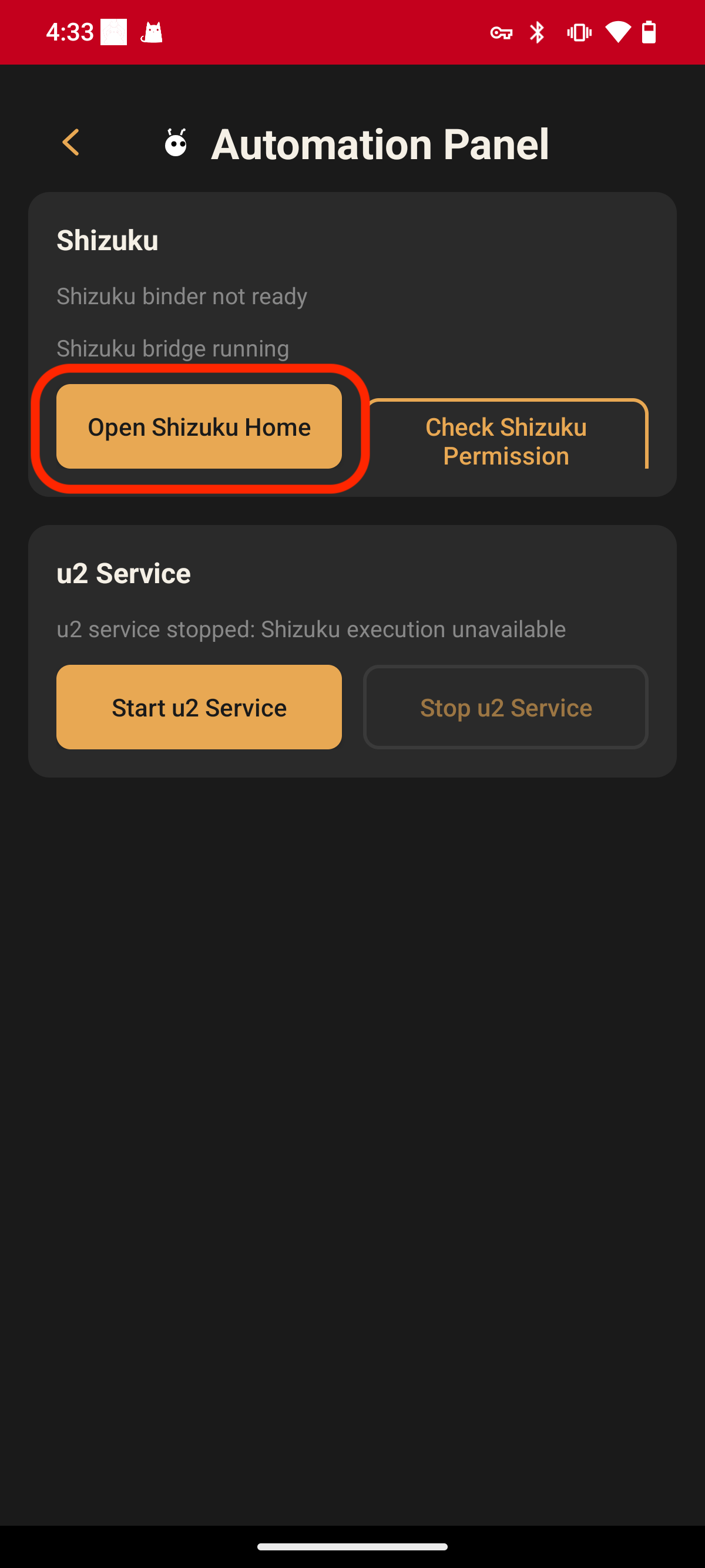
You’ll see the Automation Panel with Shizuku and u2 Service status.
Step 2: Set Up Shizuku
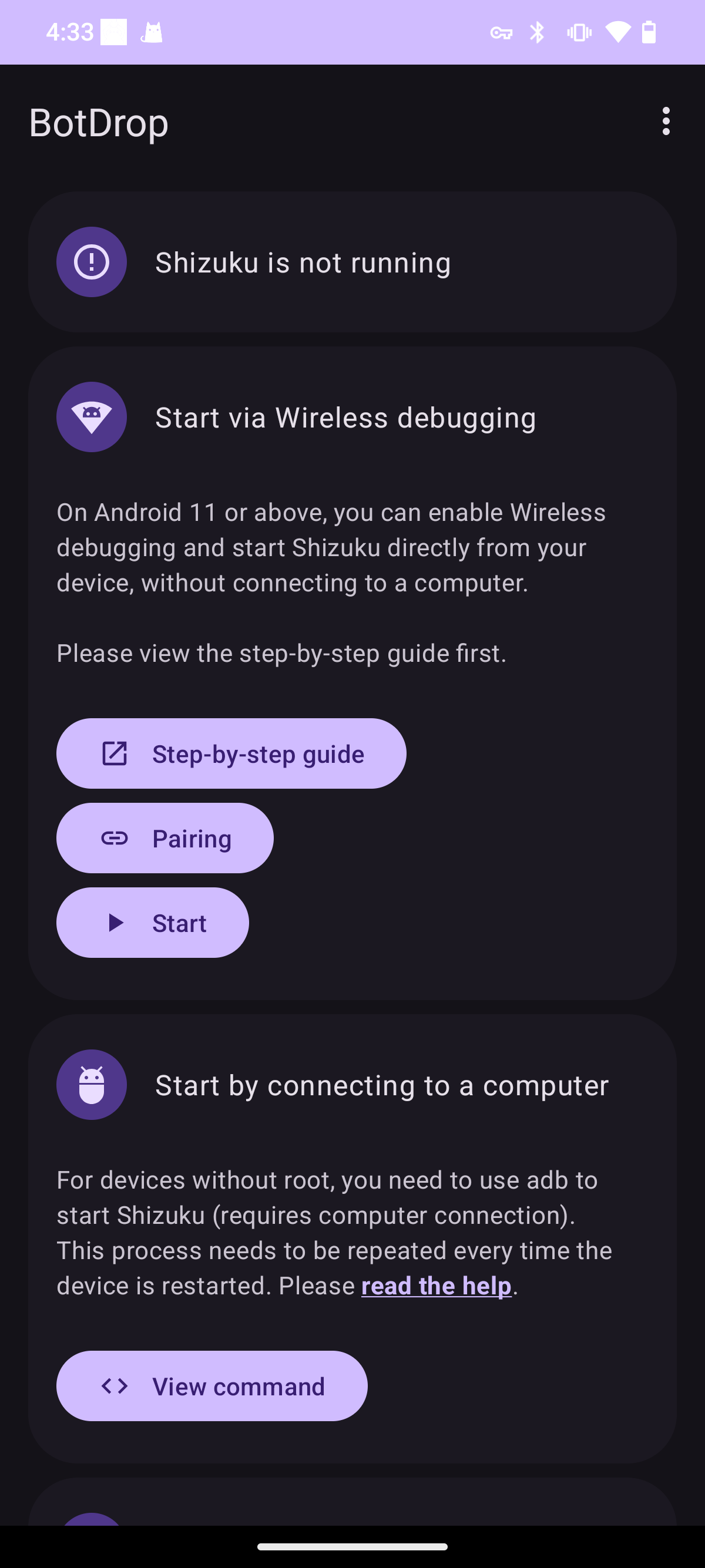
Section titled “Step 2: Set Up Shizuku”If Shizuku shows “not running”, tap Open Shizuku Home to enter the Shizuku configuration page.
Enable Developer Options (if not enabled)
Section titled “Enable Developer Options (if not enabled)”If Developer Options aren’t enabled on your device yet:
- Go to Settings → About phone
- Find Build number (or MIUI version, Software version, etc.)
- Tap it 7 times until you see “You are now a developer”
- Go back to Settings → System (or “Additional settings”), find Developer options
- Enable USB debugging
- Enable Wireless debugging (available on Android 11+)
Pair with Wireless Debugging
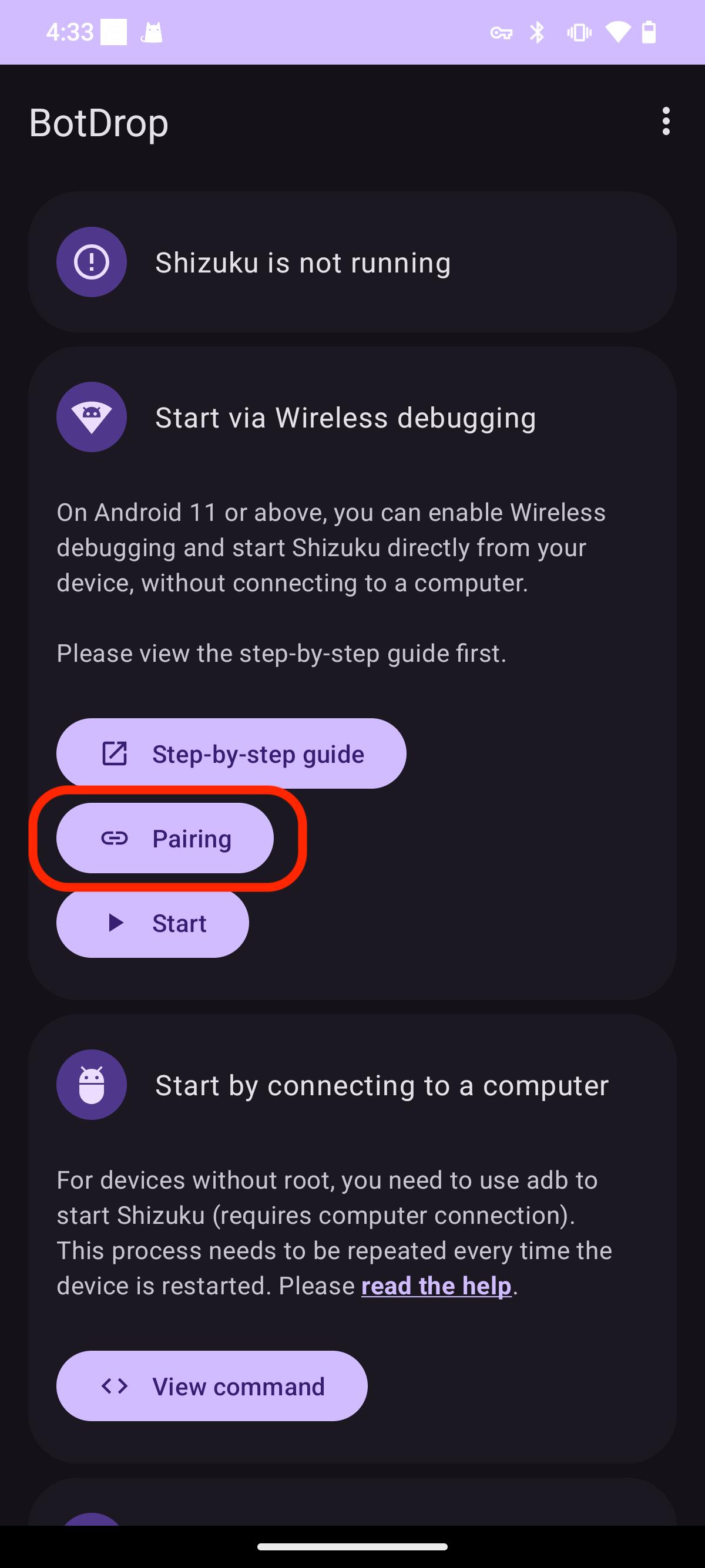
Section titled “Pair with Wireless Debugging”On the Shizuku home page, tap the Pairing button to enter the pairing guide.
-
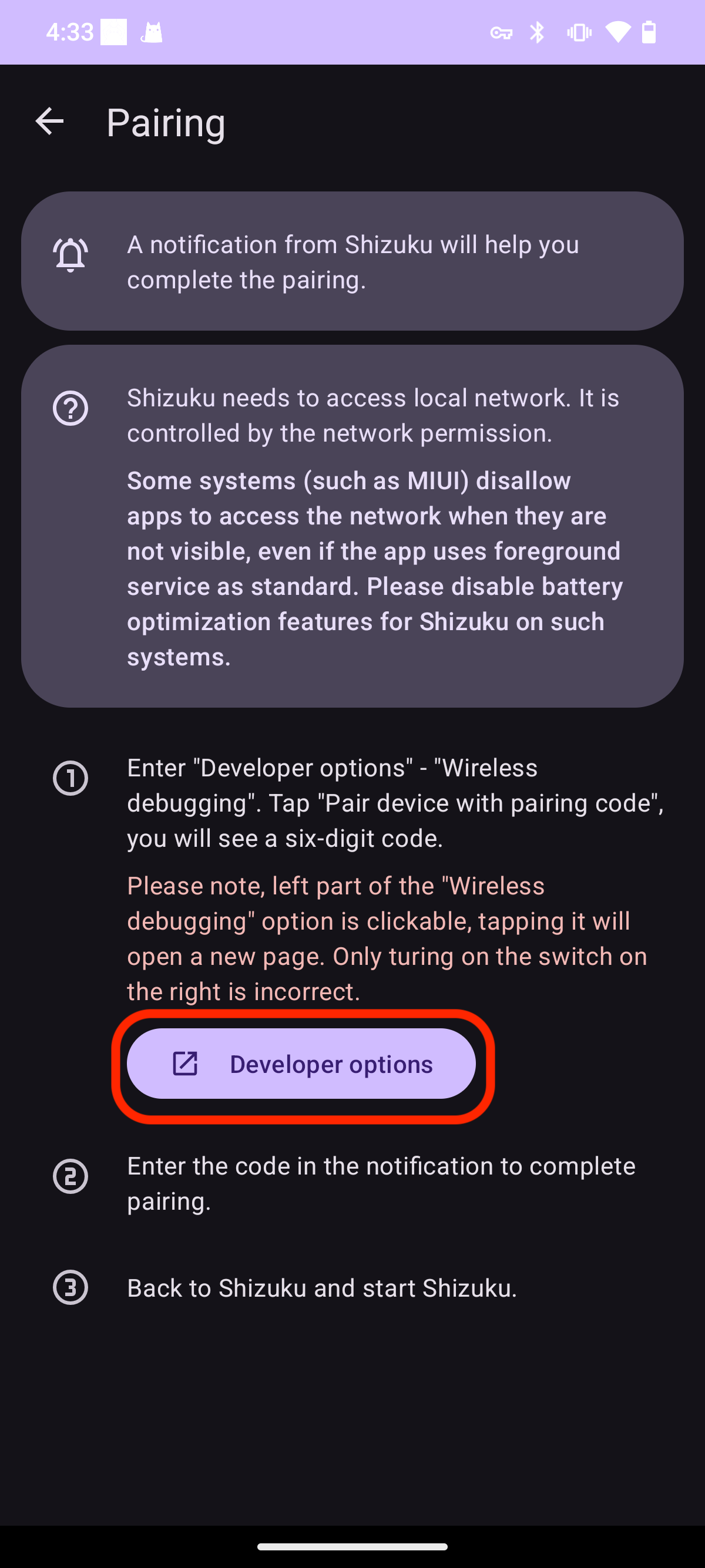
Tap Developer options to jump to system settings
-
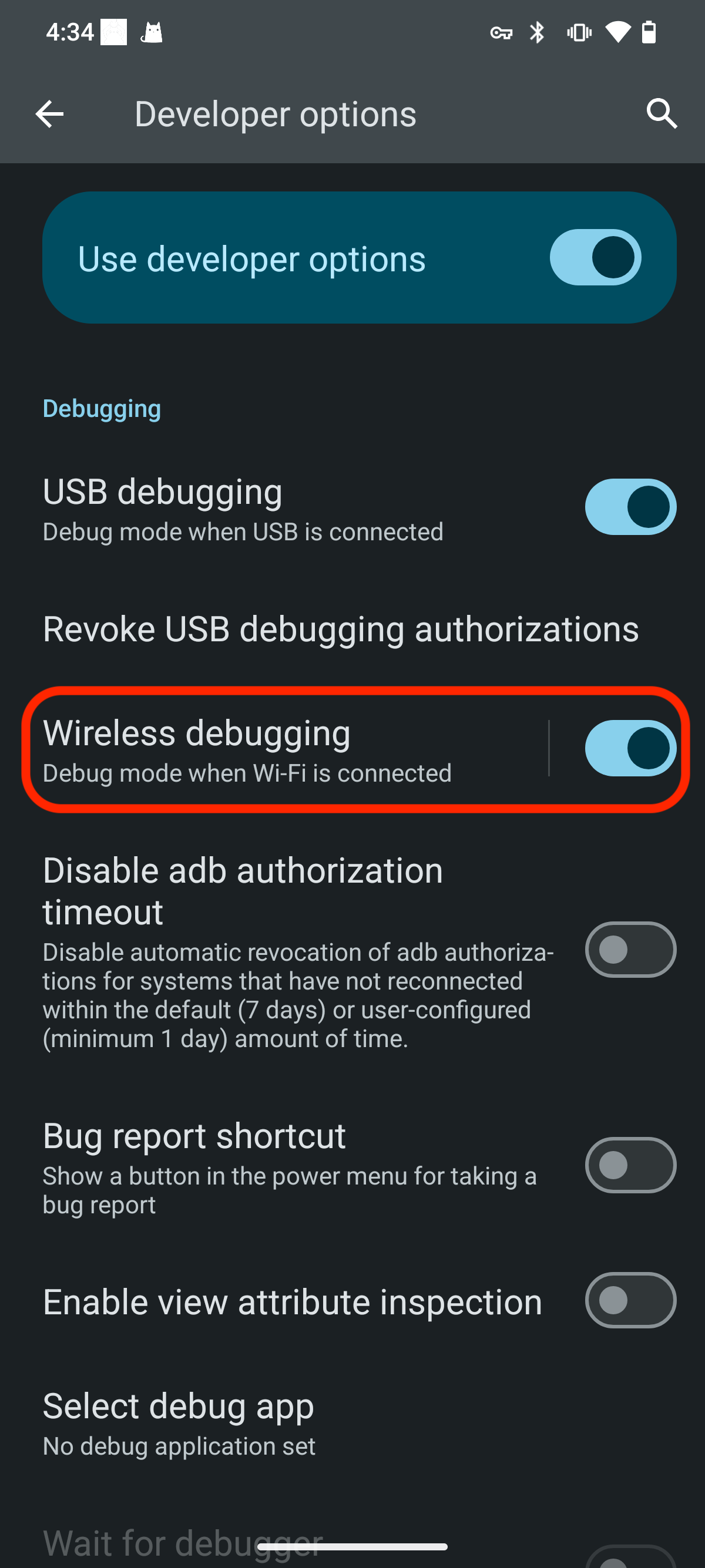
Turn on the Wireless debugging toggle, then tap the text to enter the detail page
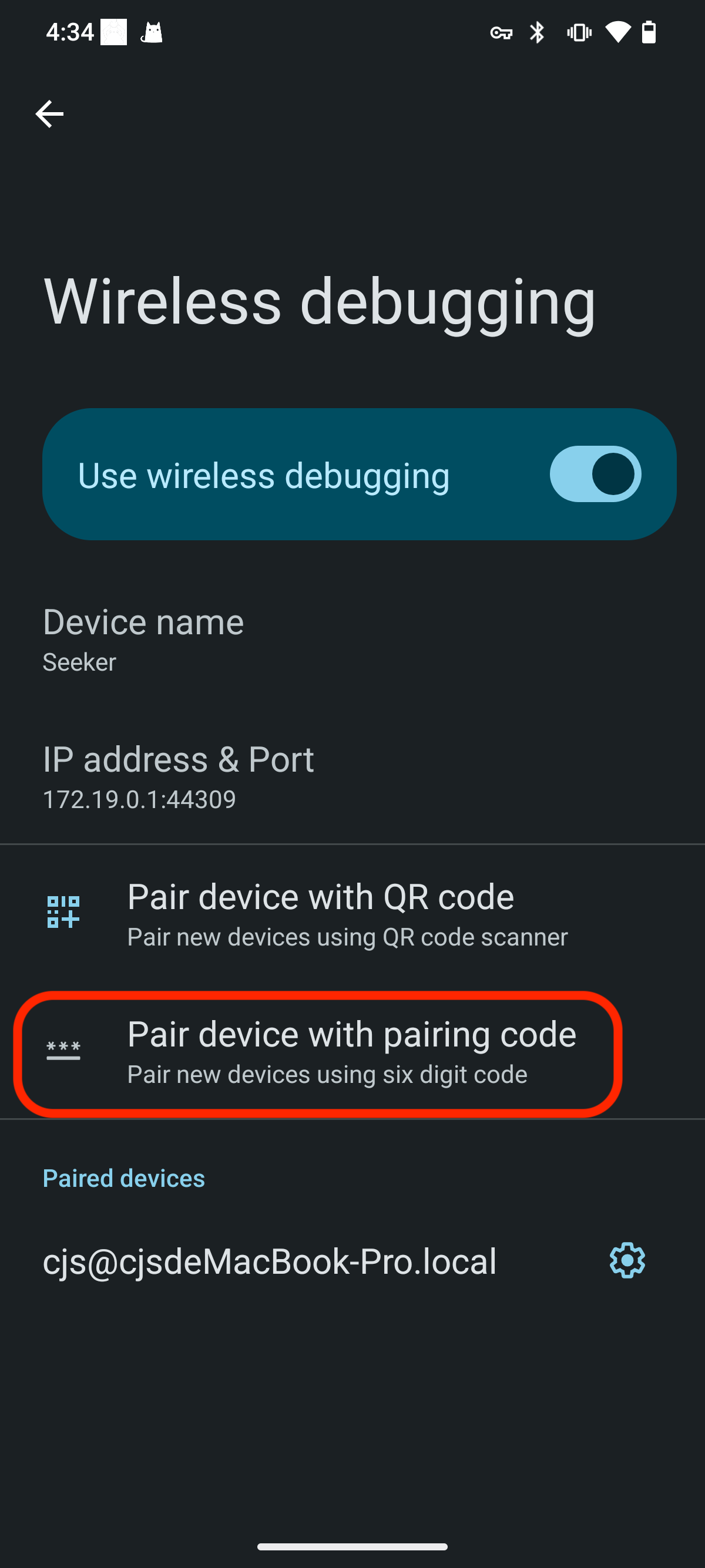
- Tap Pair device with pairing code, a 6-digit code will appear
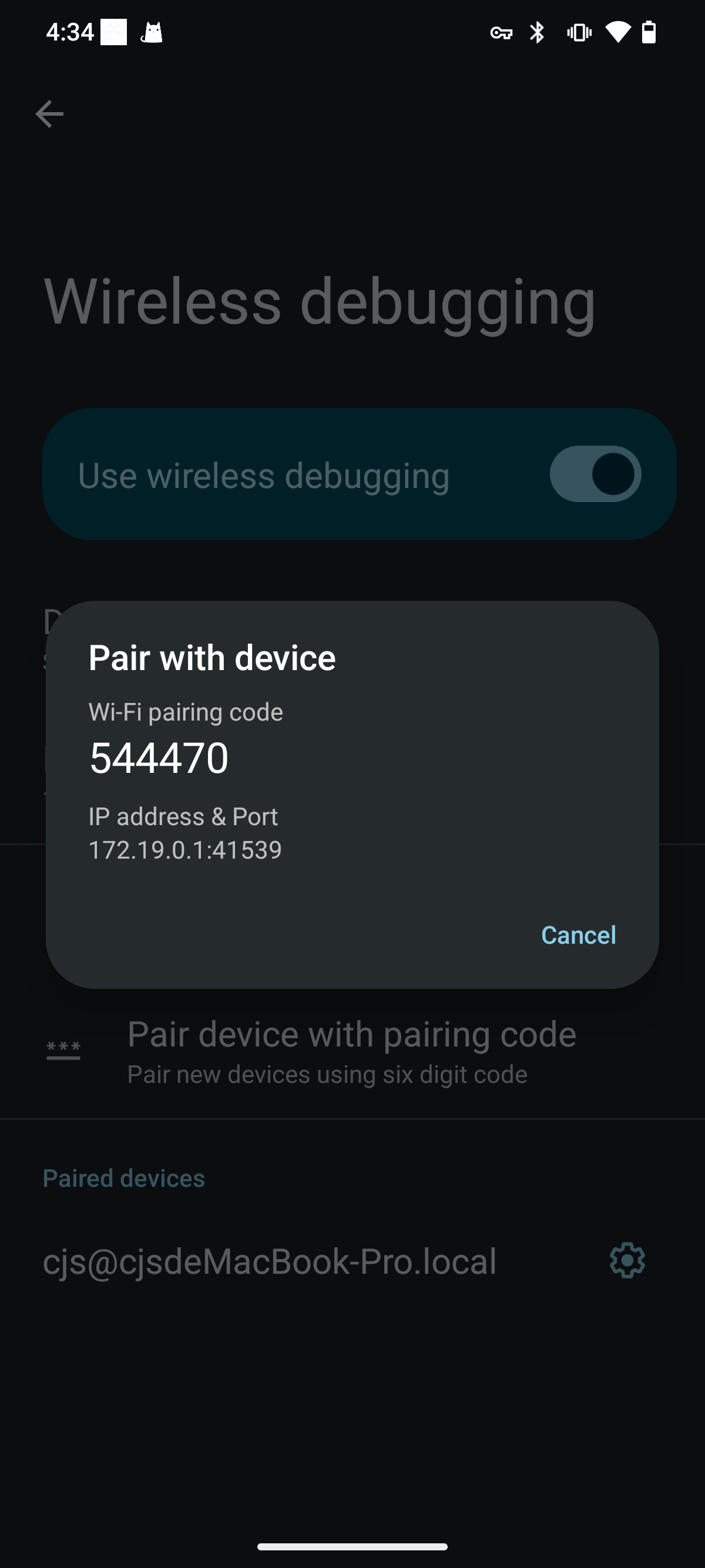
- There are two ways to enter the pairing code:
Option A: Popup input
If a Shizuku input box appears at the top of your screen, enter the pairing code there and tap the send button.
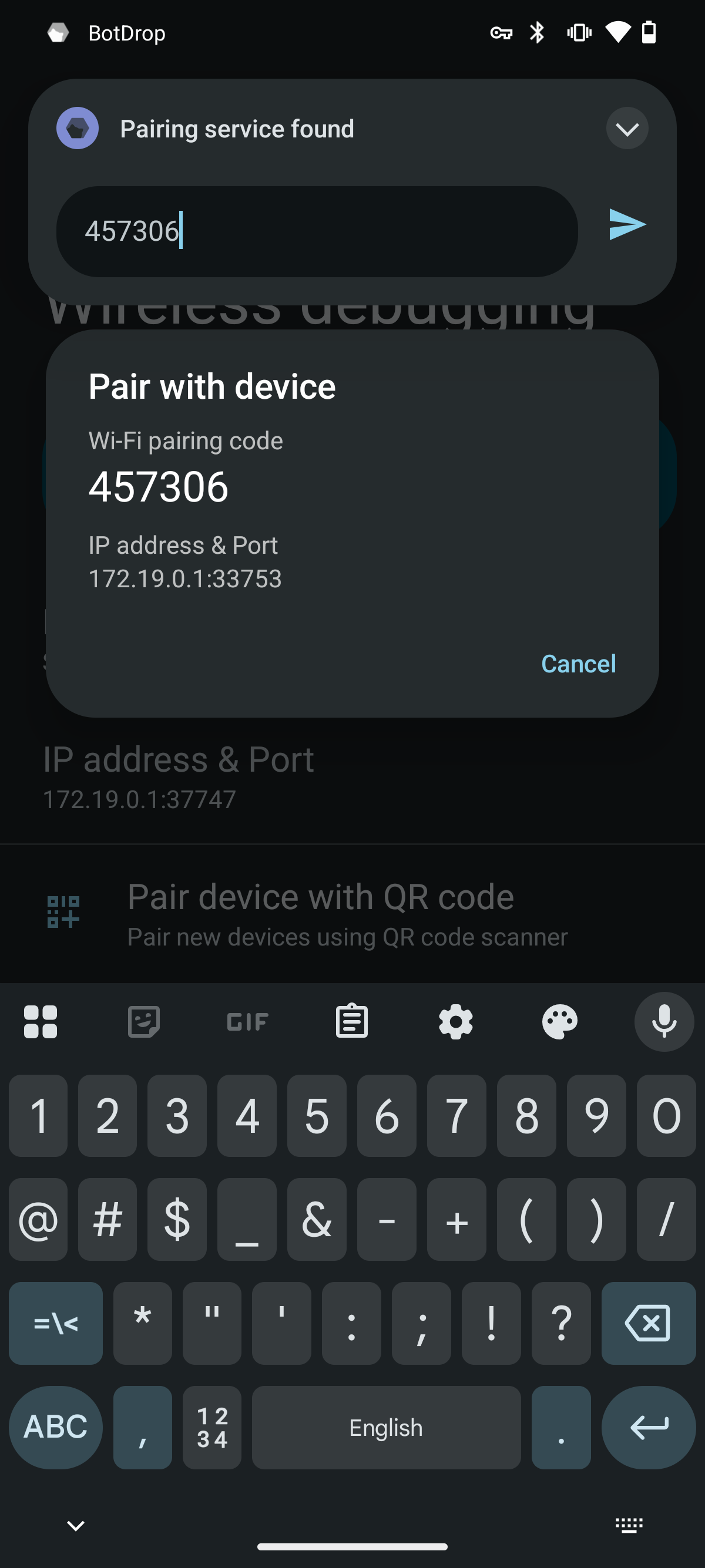
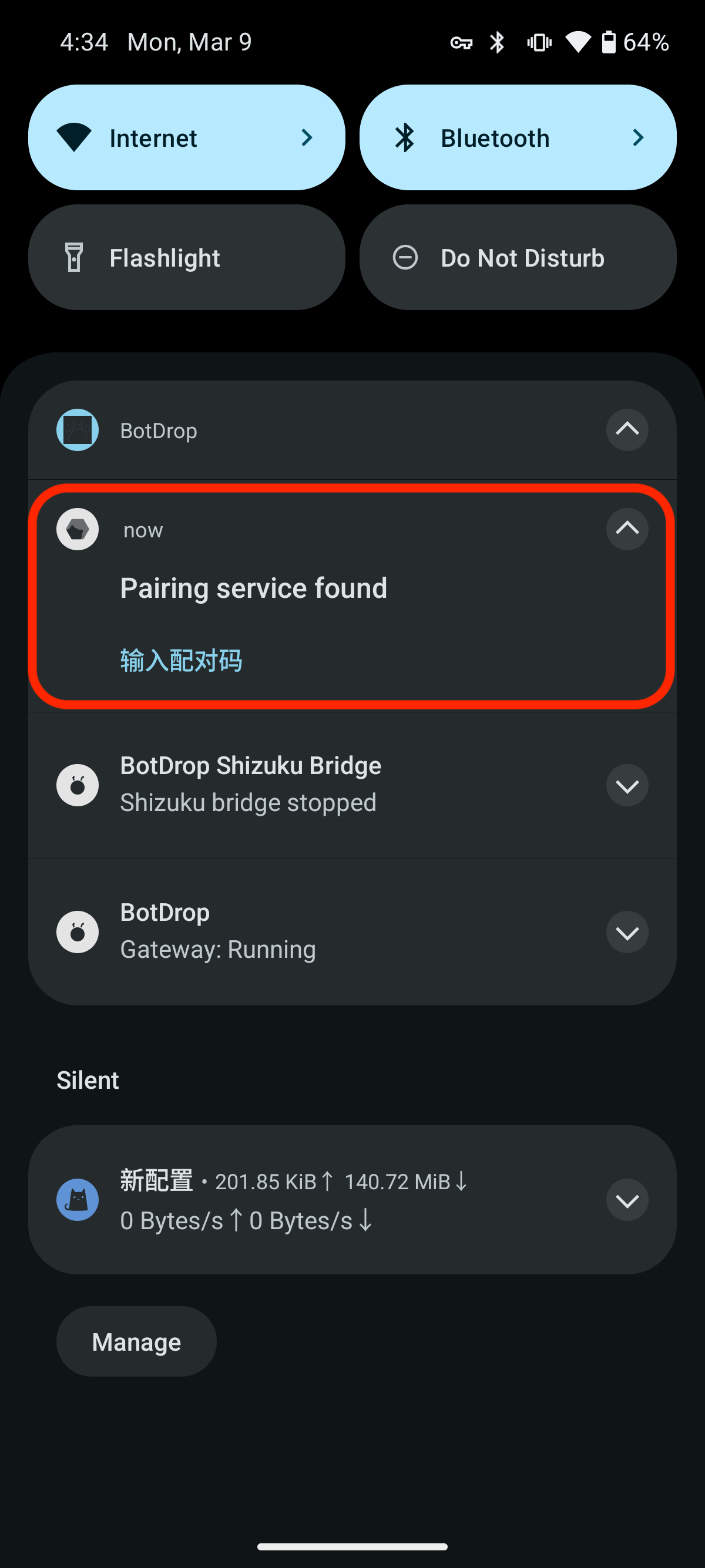
Option B: From notification shade
If no popup appears, pull down the notification shade, find the Shizuku notification showing “Pairing service found”, tap “Enter pairing code” and enter it.
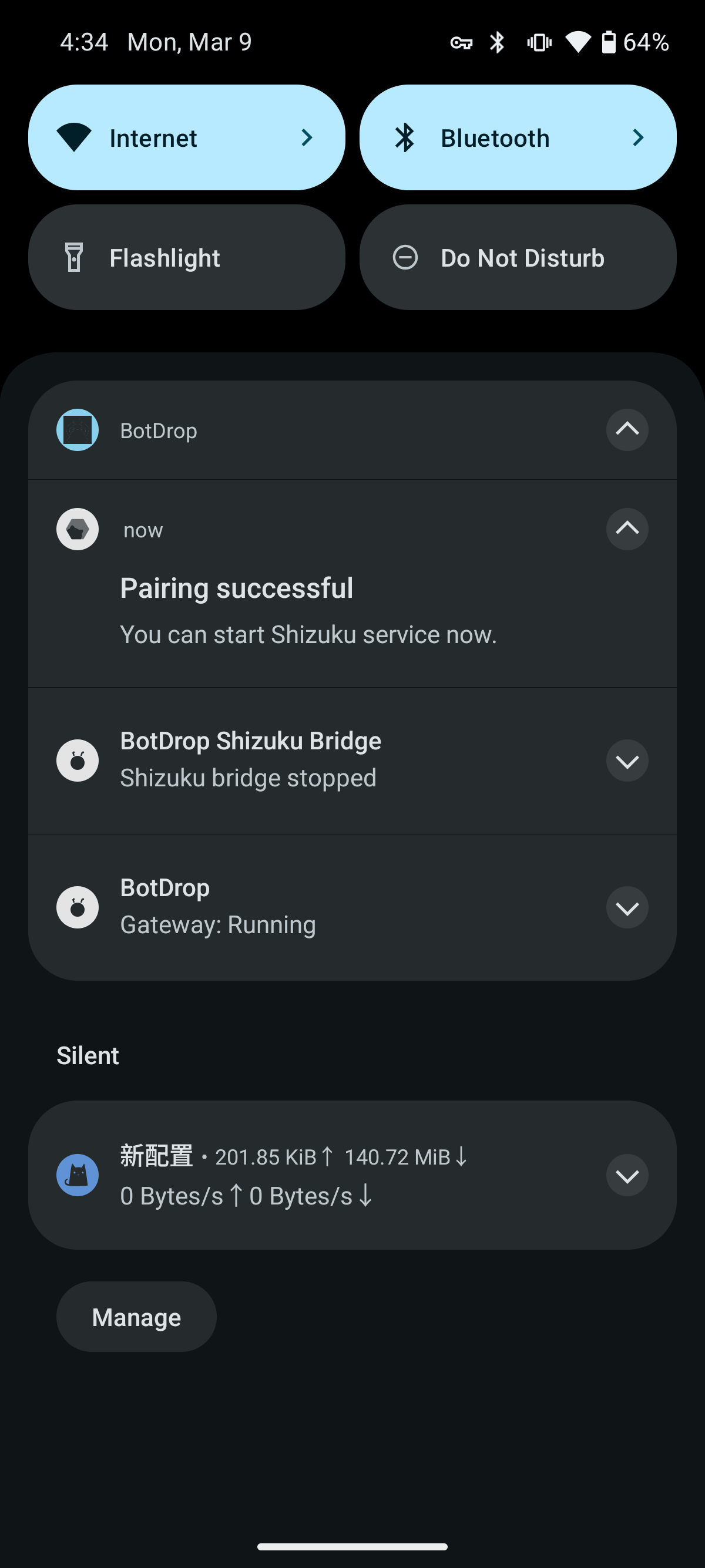
- After successful input, you’ll see “Pairing successful”
Start Shizuku
Section titled “Start Shizuku”Return to the Shizuku home page and tap the Start button.
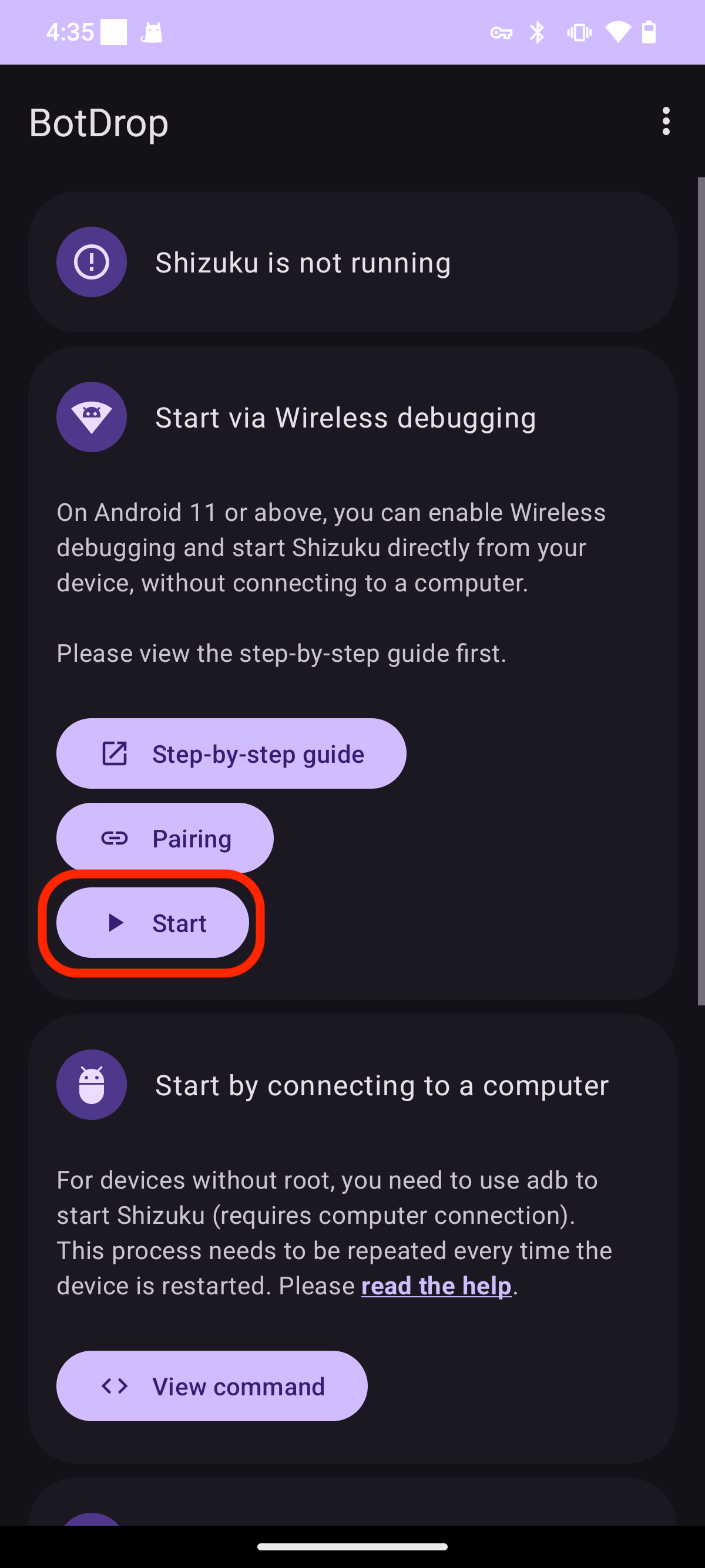
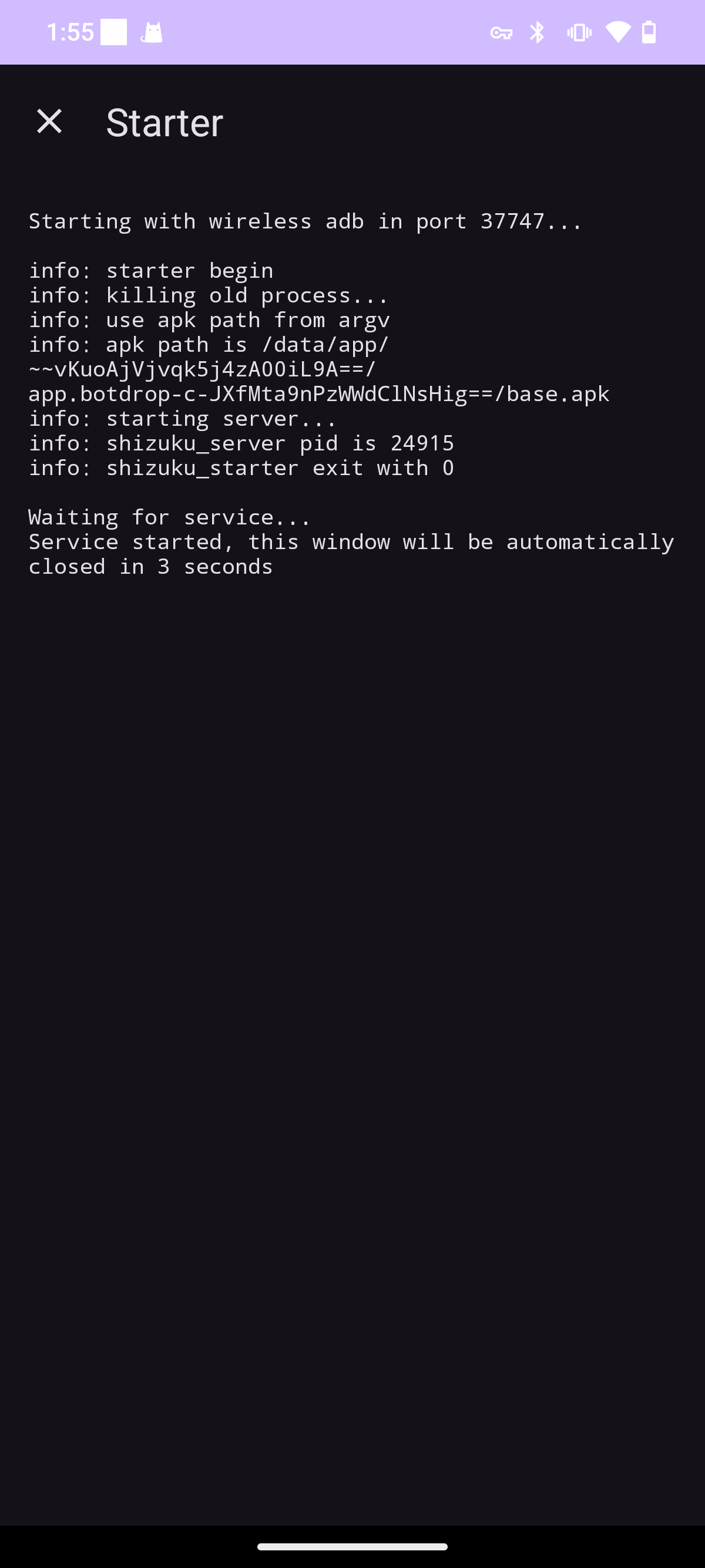
A terminal window shows the startup process.
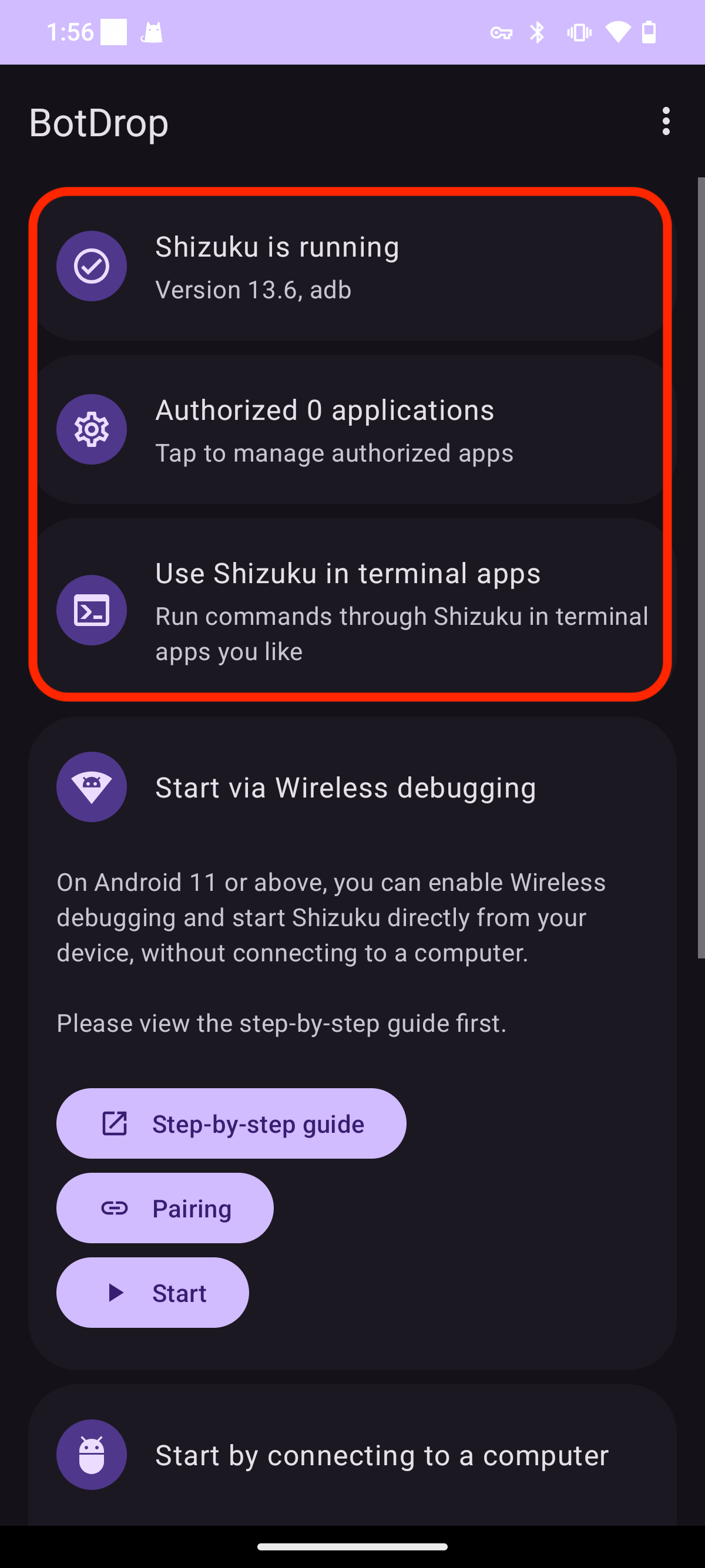
Once complete, you’ll see “Shizuku is running” with version info.
Step 3: Grant Permission to BotDrop
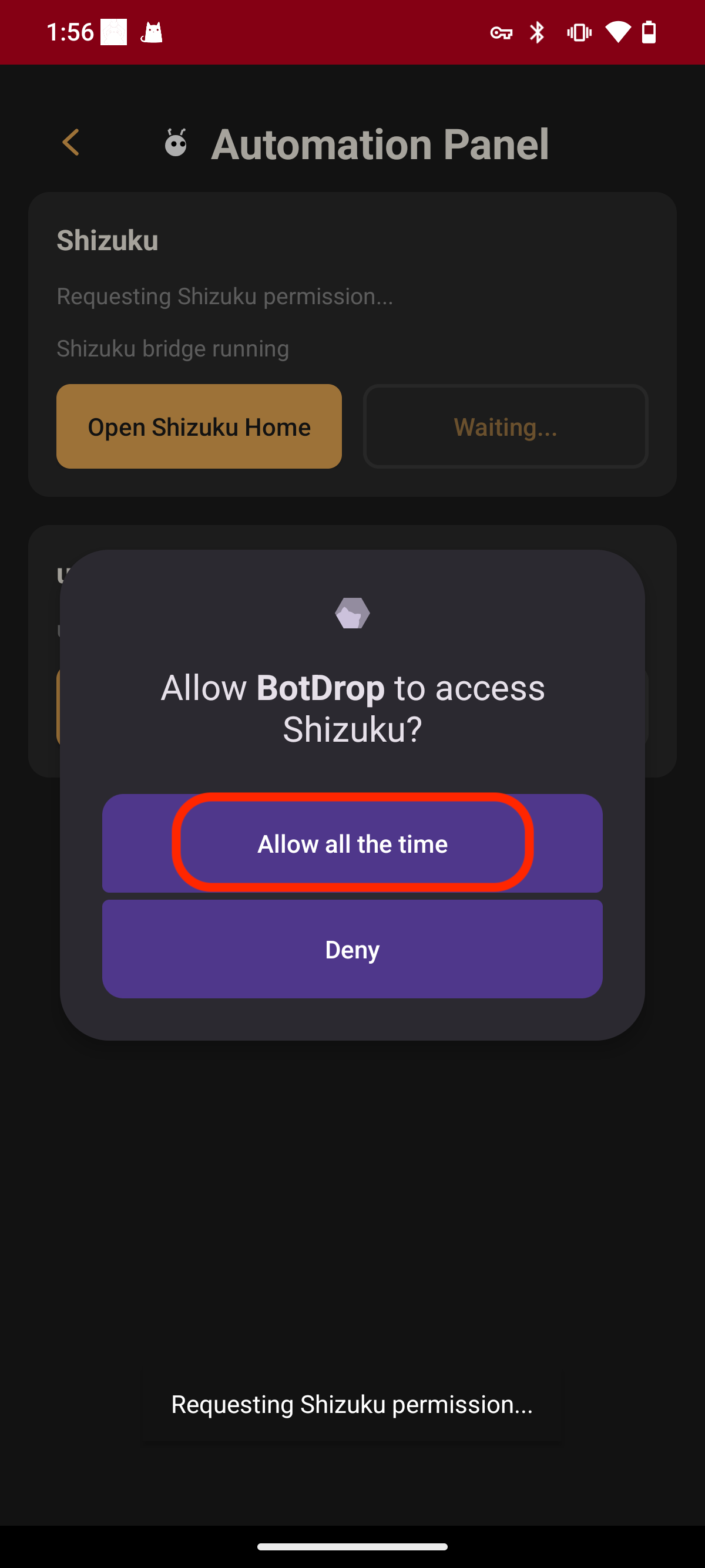
Section titled “Step 3: Grant Permission to BotDrop”Return to BotDrop’s Automation Panel. It now shows “Shizuku precheck passed”. Tap Check Shizuku Permission.
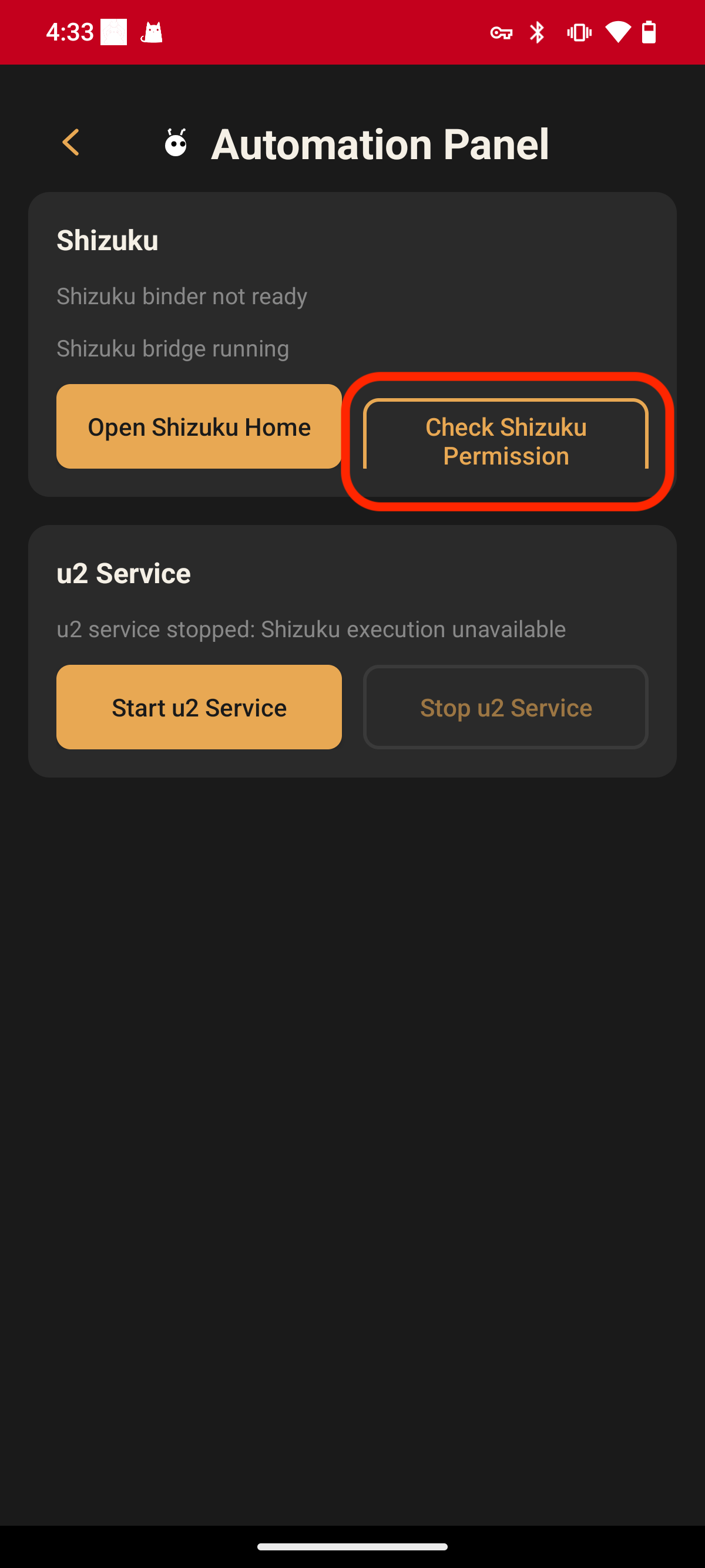
A dialog asks to allow BotDrop access to Shizuku. Tap “Allow all the time” for permanent access.
Step 4: Start u2 Service
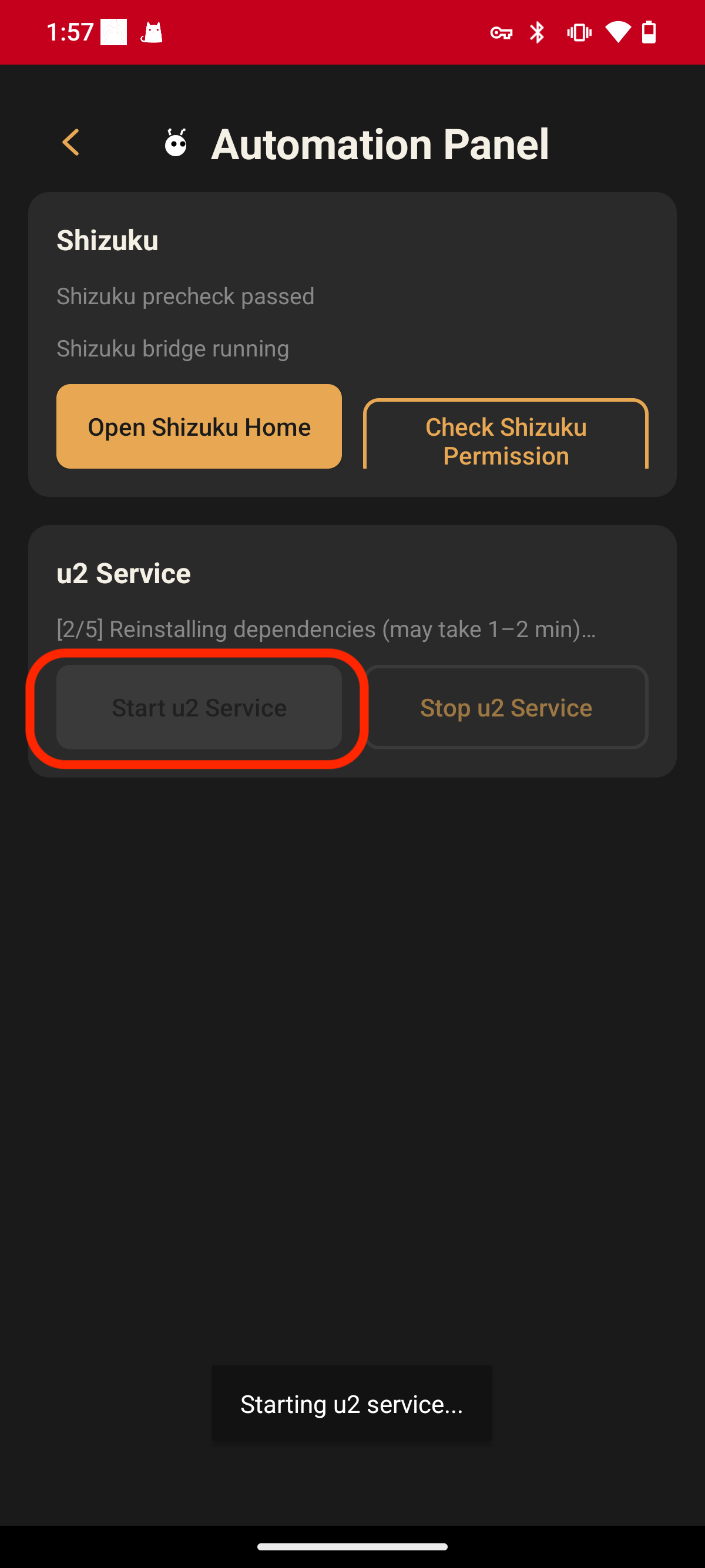
Section titled “Step 4: Start u2 Service”After granting permission, tap Start u2 Service.
Step 5: Done
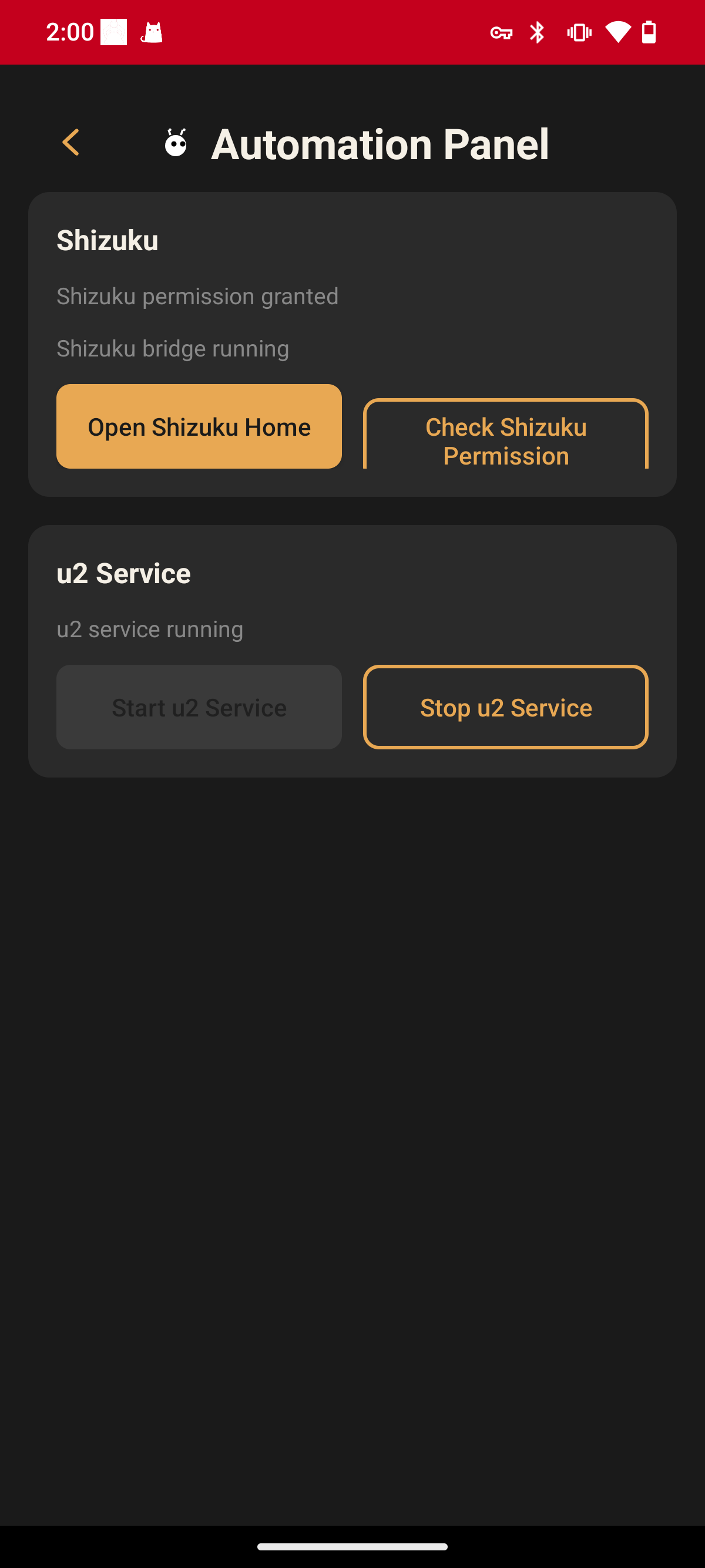
Section titled “Step 5: Done”When complete, both services show green status:
- Shizuku permission granted ✓
- u2 service running ✓
Your bot now has full automation capabilities.
After Device Restart
Section titled “After Device Restart”Shizuku stops when your device restarts. To re-enable:
- Open BotDrop → Automation Panel → Open Shizuku Home
- Tap Start (no need to pair again if wireless debugging is still enabled)
- Return to Automation Panel → Start u2 Service
Troubleshooting
Section titled “Troubleshooting””Shizuku binder not ready”
Section titled “”Shizuku binder not ready””- Make sure Shizuku is running (green status in Shizuku app)
- Try restarting Shizuku from its home screen
u2 service fails to start
Section titled “u2 service fails to start”- Ensure Shizuku permission is granted
- Check if there’s enough storage space
- Try stopping and starting u2 service again
Pairing code doesn’t work
Section titled “Pairing code doesn’t work”- Make sure you’re entering the code within 60 seconds
- The pairing port and connection port are different (both shown on screen)
- Try generating a new pairing code
Xiaomi phones don’t show pairing popup
Section titled “Xiaomi phones don’t show pairing popup”- Settings → Apps → Manage apps → BotDrop → Notifications → Enable “Floating notifications”
- Or just enter the code from the notification shade instead