Discord
Four steps to connect Discord: create a bot, invite it to your server, copy the IDs, then fill them in BotDrop.
Step 1: Create a Bot & Get Token
Section titled “Step 1: Create a Bot & Get Token”Create a New Application
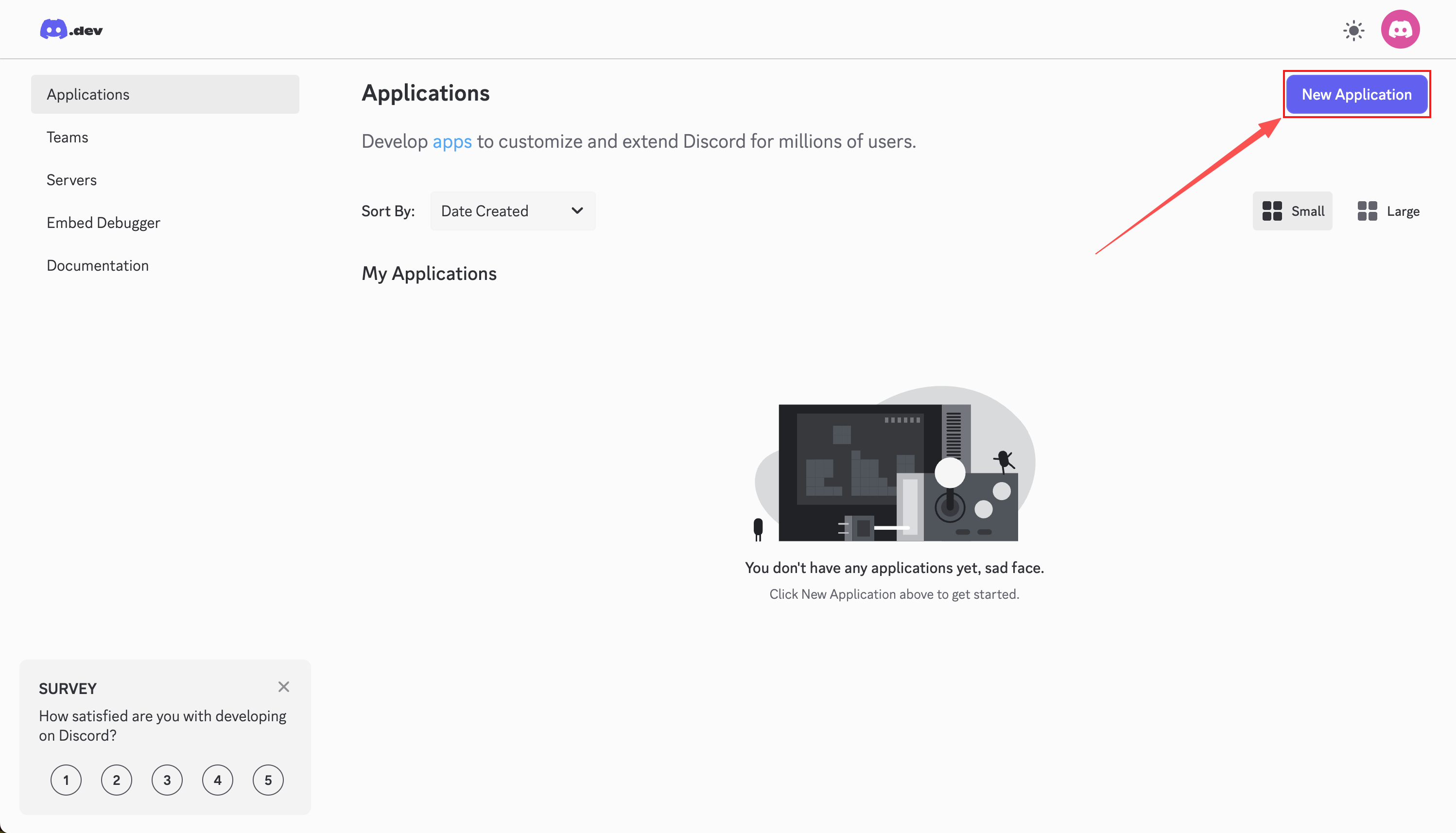
Section titled “Create a New Application”Go to the Discord Developer Portal and click New Application.
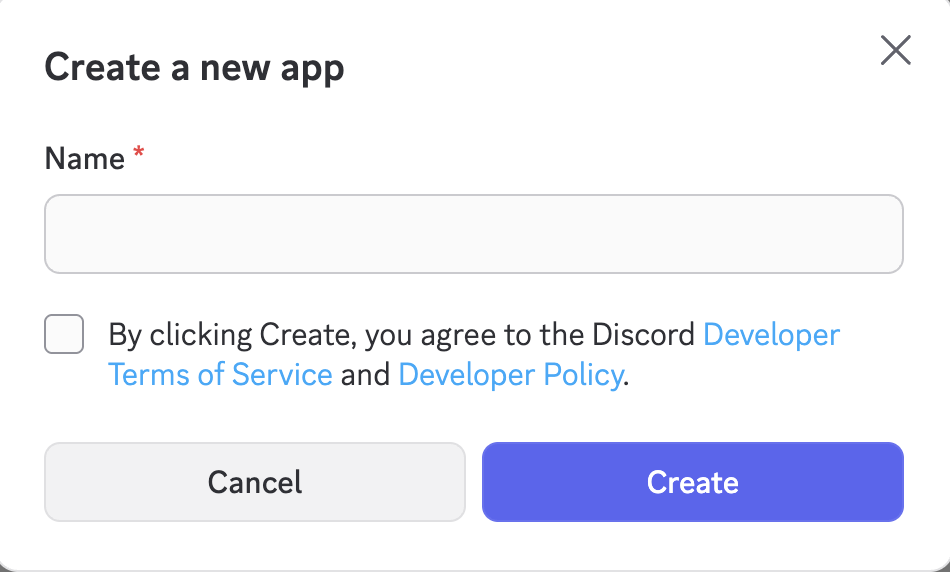
Enter a name (e.g. “BotDrop AI”) and click Create.
Get the Bot Token
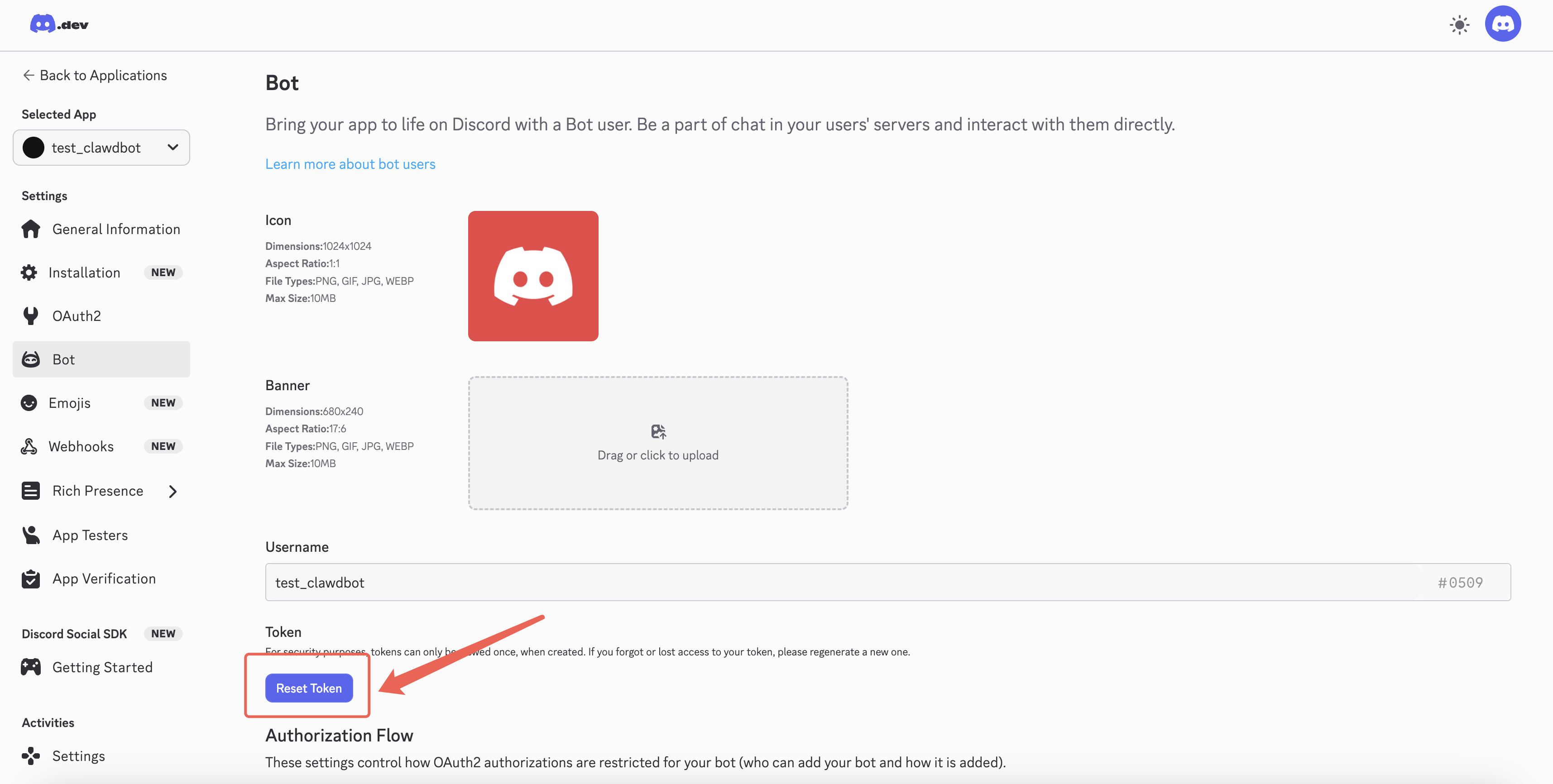
Section titled “Get the Bot Token”Click Bot in the left sidebar, then click Reset Token. Copy and save the token.
Enable Privileged Intents
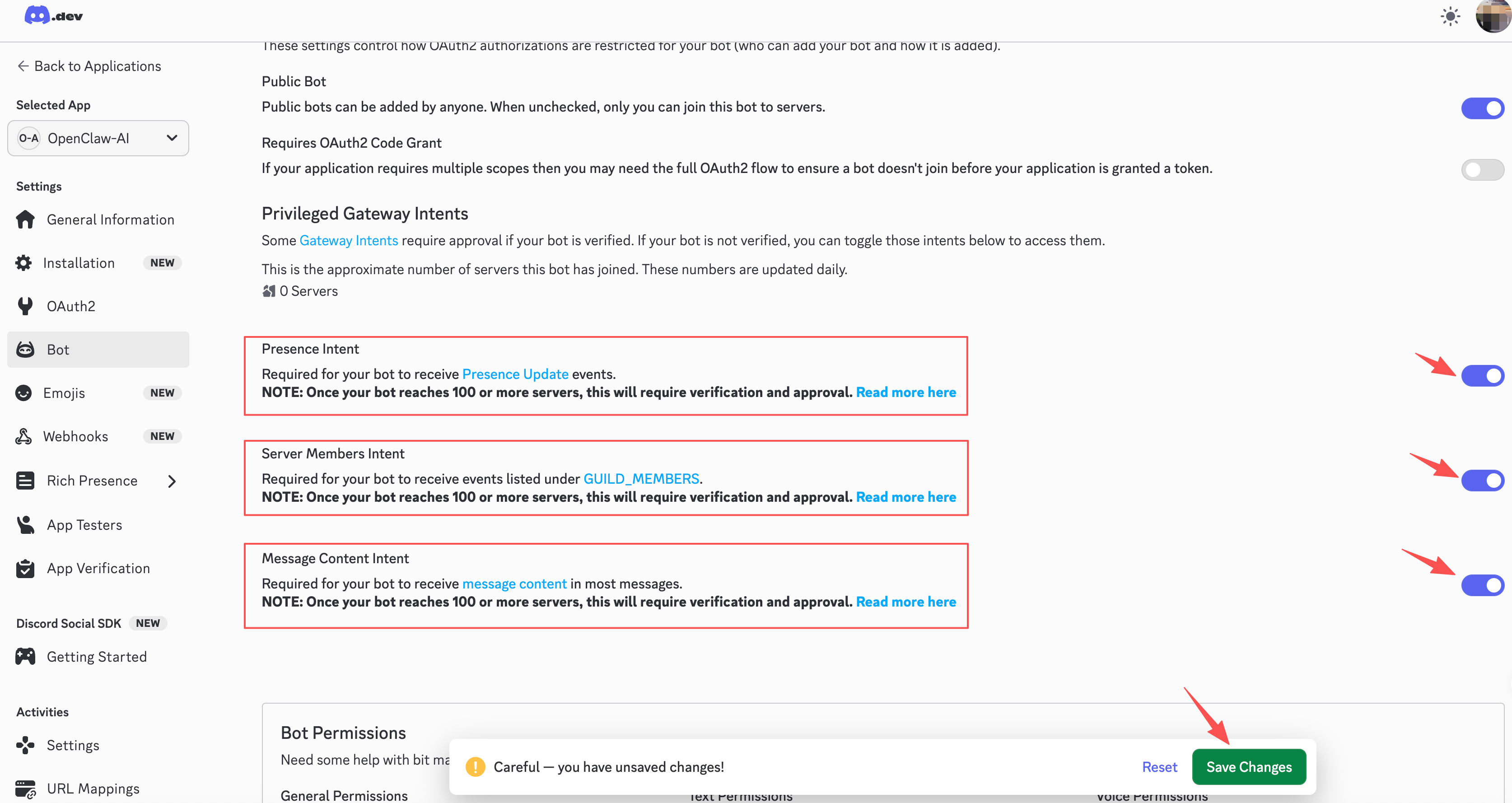
Section titled “Enable Privileged Intents”Scroll down to Privileged Gateway Intents and enable:
- Message Content Intent (required)
- Server Members Intent (recommended)
- Presence Intent (optional)
Click Save Changes.
Step 2: Invite the Bot to Your Server
Section titled “Step 2: Invite the Bot to Your Server”Generate an Invite URL
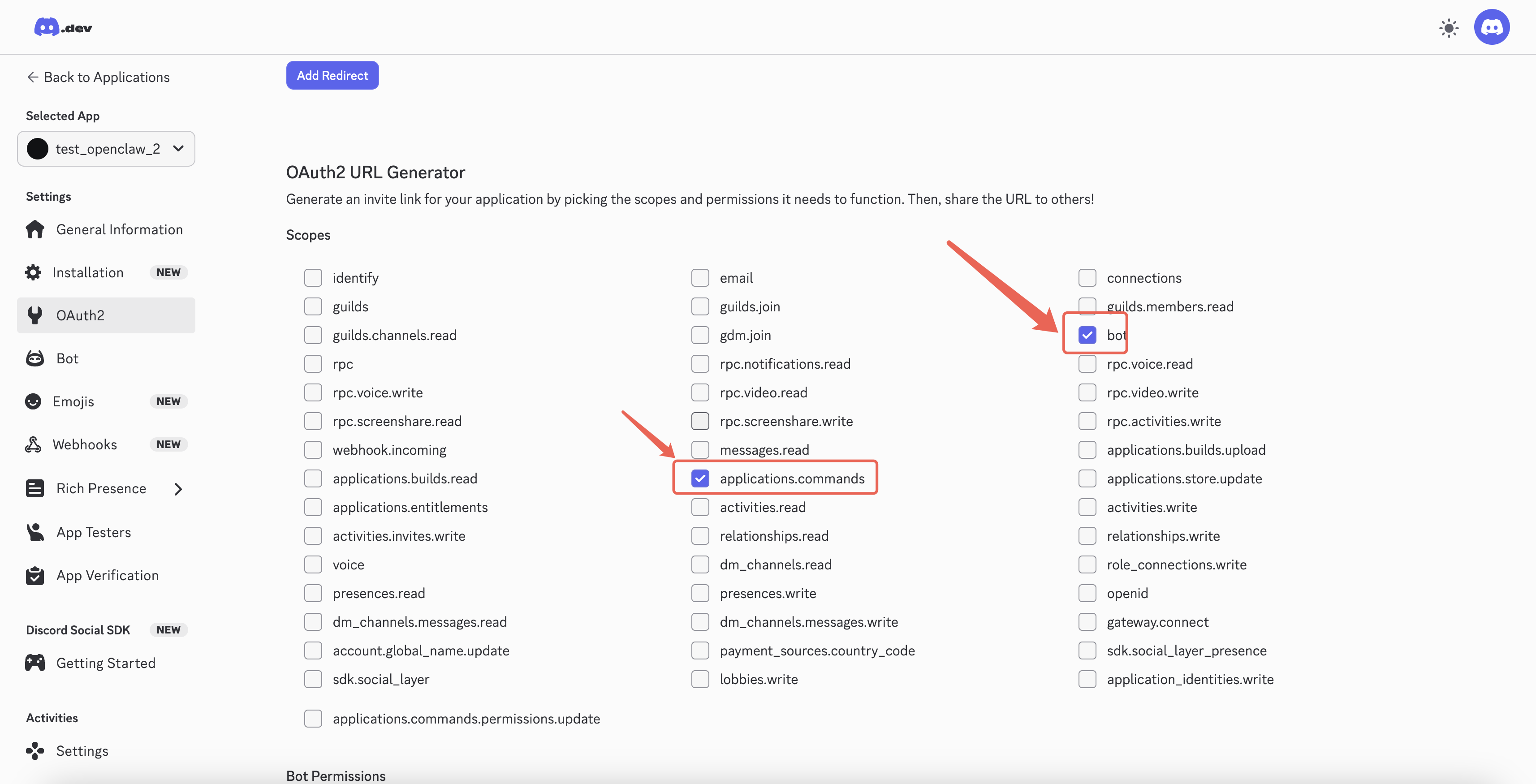
Section titled “Generate an Invite URL”Click OAuth2 in the sidebar, scroll to OAuth2 URL Generator.
Under Scopes, check bot and applications.commands.
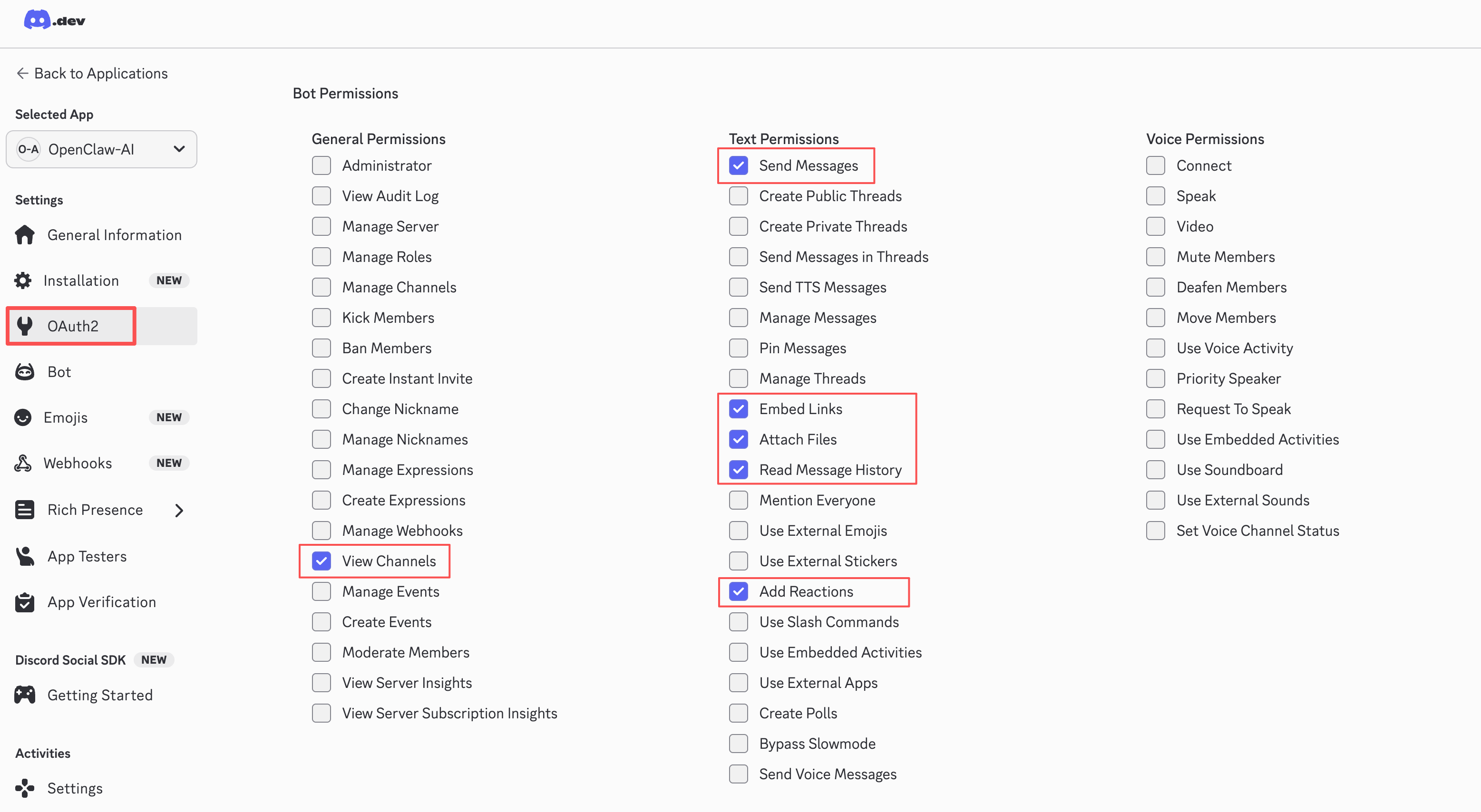
Under Bot Permissions, check:
- View Channels
- Send Messages
- Read Message History
- Embed Links
- Attach Files
- Add Reactions
Add Bot to Server
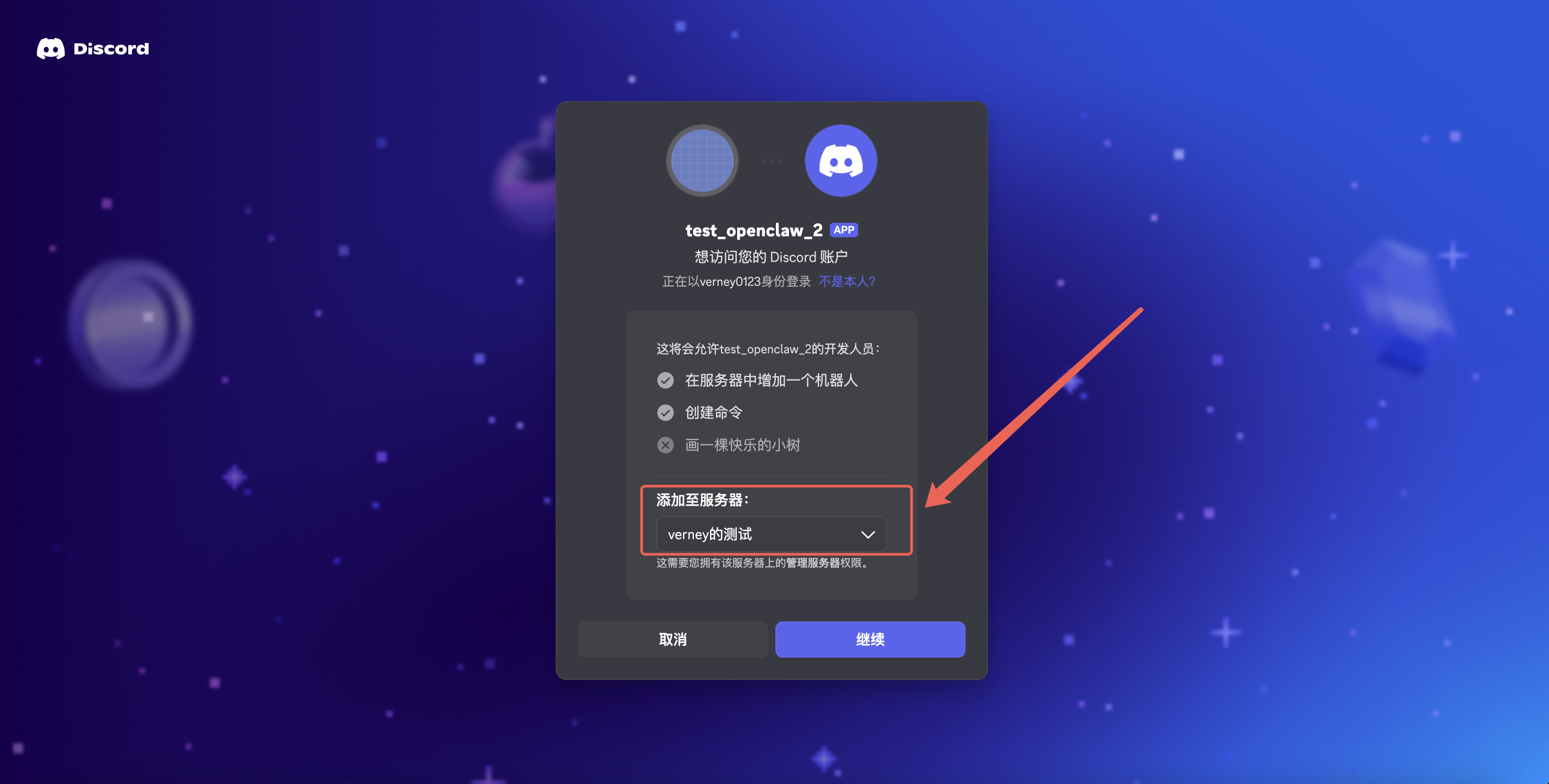
Section titled “Add Bot to Server”Copy the Generated URL at the bottom, open it in your browser, select your server, and authorize.
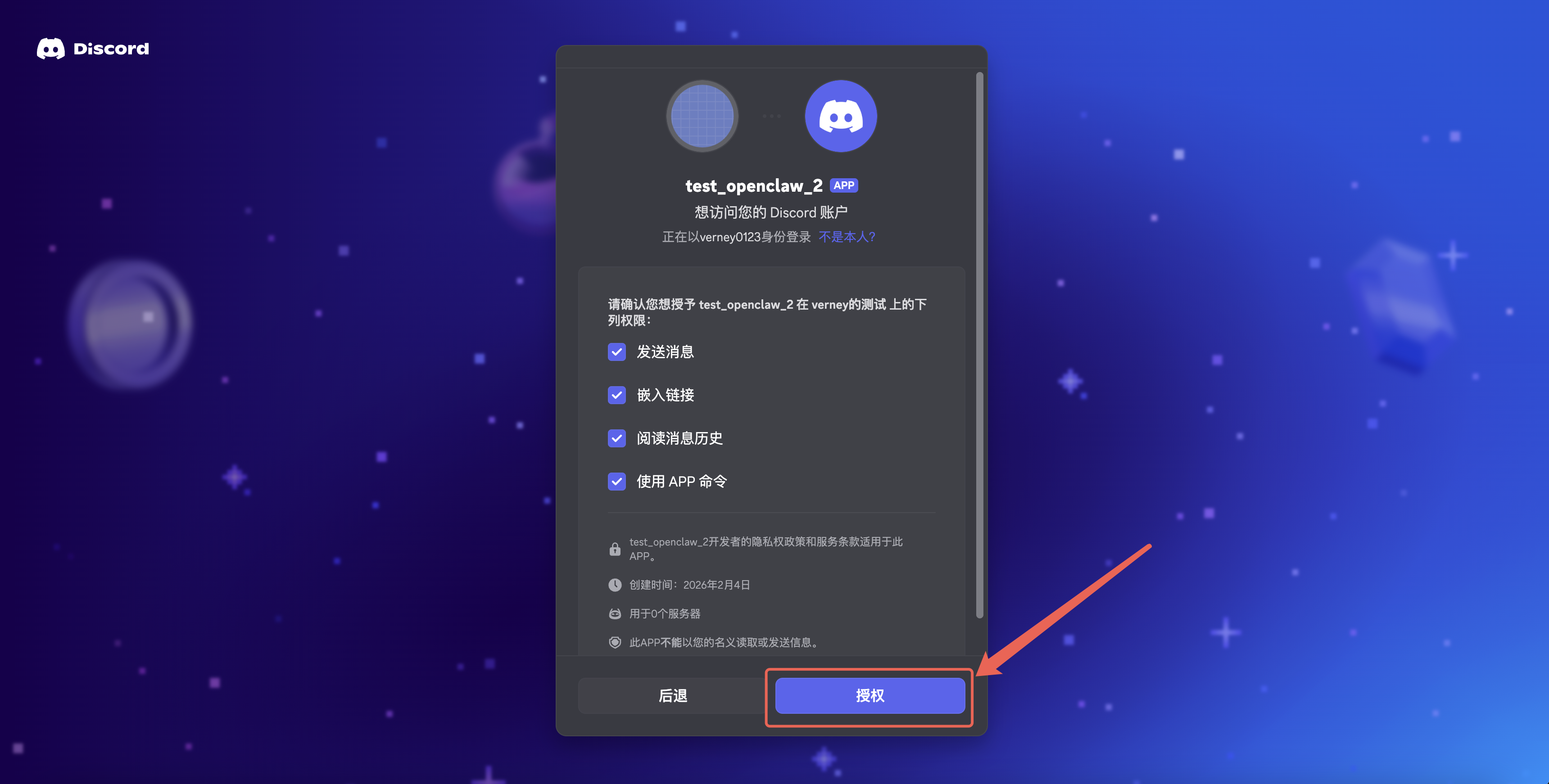
Step 3: Get Guild ID and Channel ID
Section titled “Step 3: Get Guild ID and Channel ID”Enable Developer Mode in Discord:
- Open User Settings (gear icon) → Advanced → toggle on Developer Mode
Then:
- Right-click your server icon → Copy Server ID (this is the Guild ID)
- Right-click the channel you want the bot in → Copy Channel ID
Step 4: Configure in BotDrop
Section titled “Step 4: Configure in BotDrop”In BotDrop’s Discord setup screen, fill in:
- Bot Token — the token from Step 1
- Discord Guild ID — the server ID from Step 3
- Discord Channel ID — the channel ID from Step 3
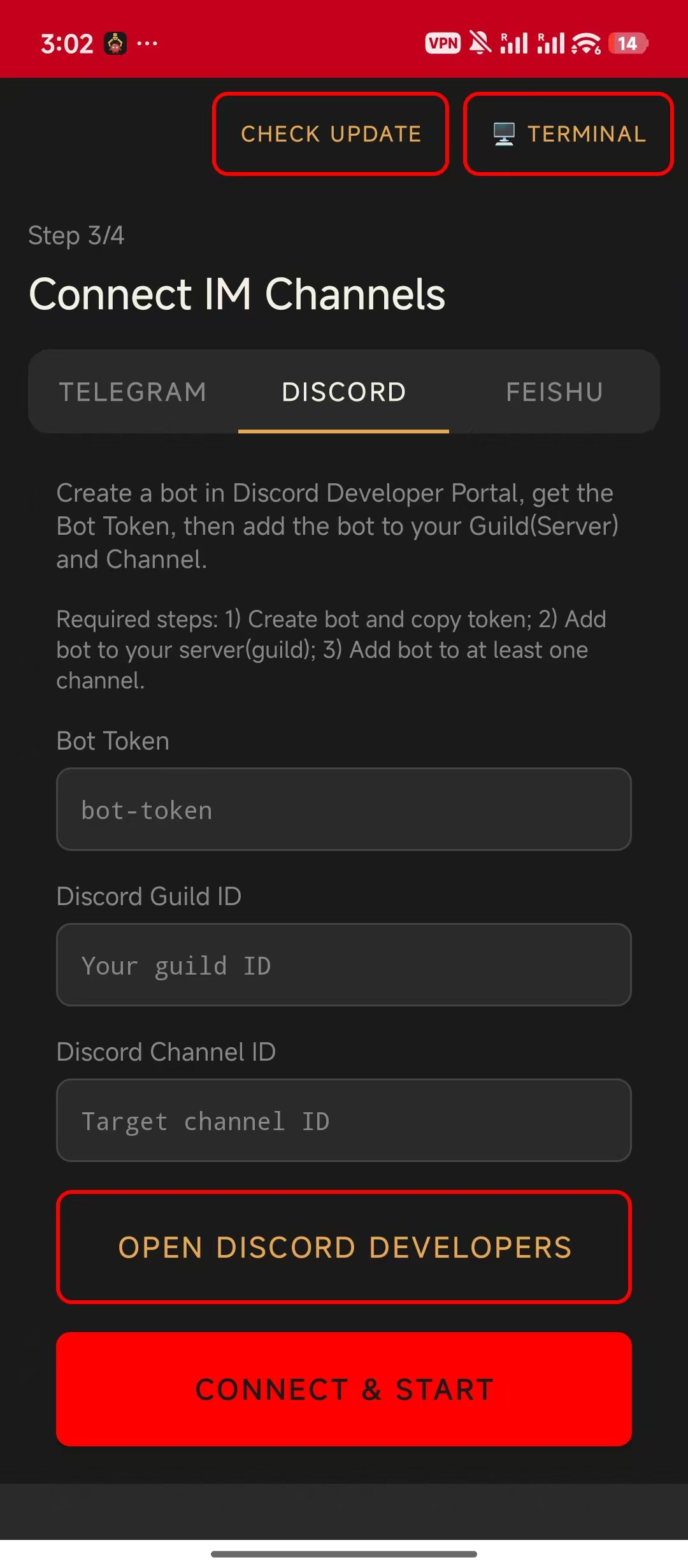
Tap CONNECT & START. Done.
- The bot responds in the configured channel
- You can restrict bot access using Discord’s channel permissions
- To add more channels, just ask your AI agent to configure them
Troubleshooting
Section titled “Troubleshooting”| Problem | Solution |
|---|---|
| Bot is offline | Check that the gateway is running in BotDrop. Verify the token. |
| Bot doesn’t respond | Verify Message Content Intent is enabled in the developer portal. |
| ”Invalid Token” error | Reset the token and re-enter it in BotDrop. |
| Bot can’t see the channel | Check that the bot has View Channels permission for that channel. |