Telegram
Two steps to connect Telegram: create a bot to get a token, then get your User ID from the BotDrop Setup Bot.
Step 1: Create a Bot & Get Token
Section titled “Step 1: Create a Bot & Get Token”Find BotFather
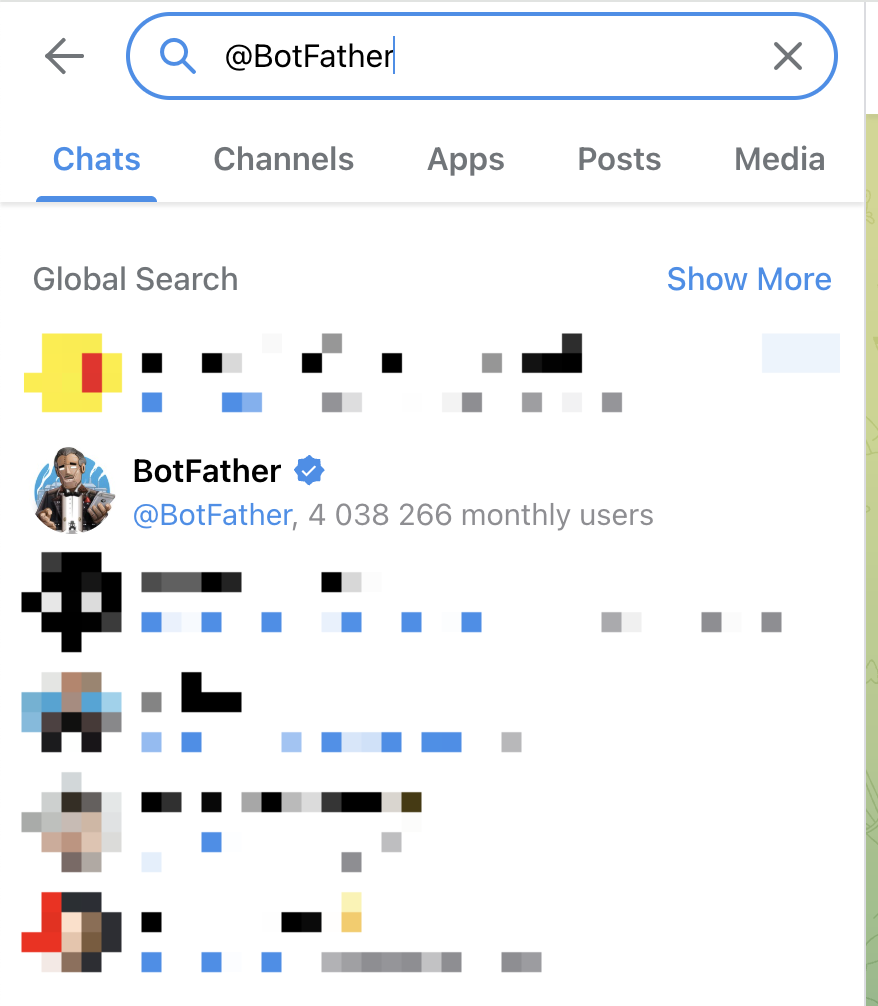
Section titled “Find BotFather”Open Telegram and search for @BotFather. Select the verified account.
Create a New Bot
Section titled “Create a New Bot”Send /newbot to BotFather.
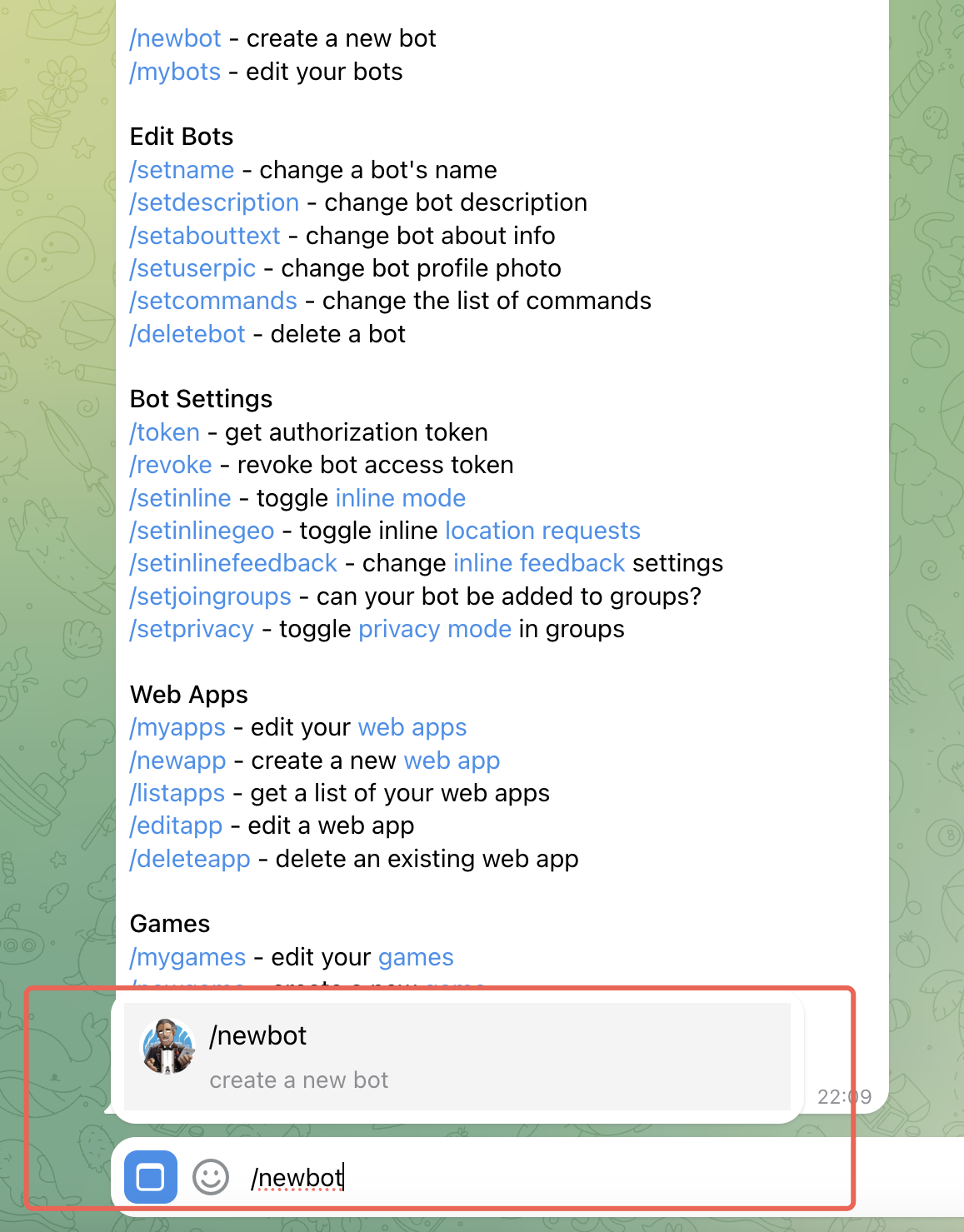
Follow the prompts:
- Enter a name for your bot (e.g. “BotDrop AI”)
- Enter a username (must end with
bot, e.g.TetrisBotortetris_bot)
BotFather will respond with your Bot Token. Copy it.
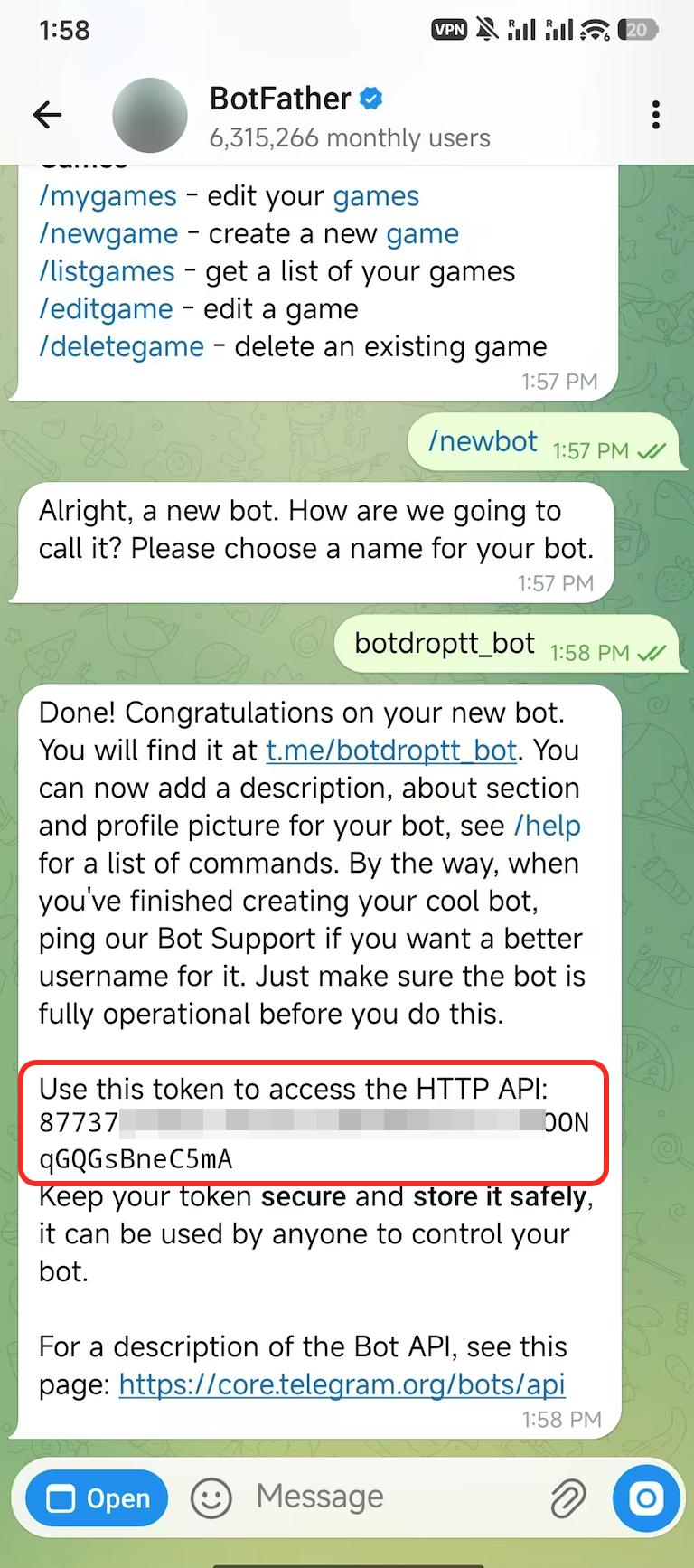
Paste the Bot Token into the Bot Token field in BotDrop.
Step 2: Get Your User ID
Section titled “Step 2: Get Your User ID”In BotDrop’s Telegram setup screen, tap OPEN @BOTDROPSETUPBOT. This opens the BotDrop Setup Assistant in Telegram.
Send /start to the bot. It will reply with your User ID.
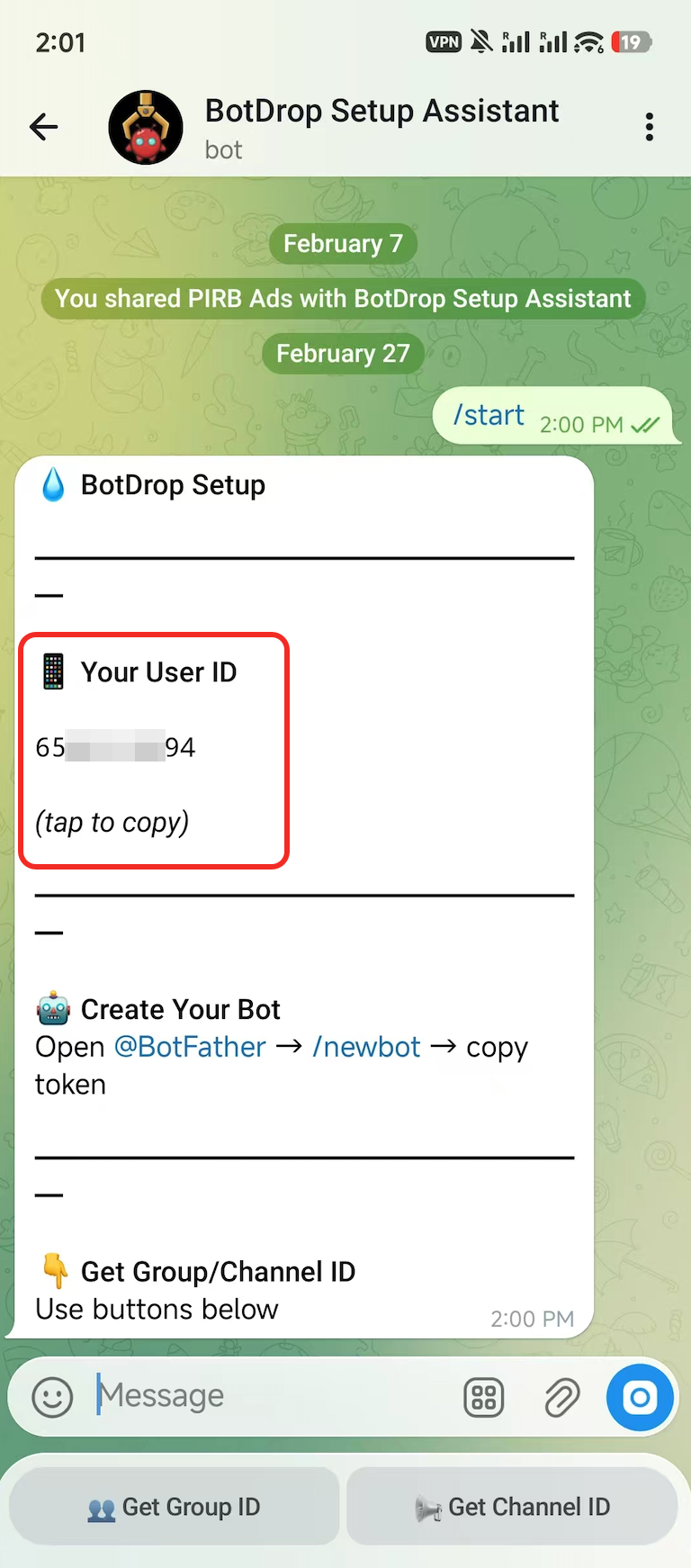
Tap the User ID to copy it, then paste it into the Your User ID field in BotDrop.
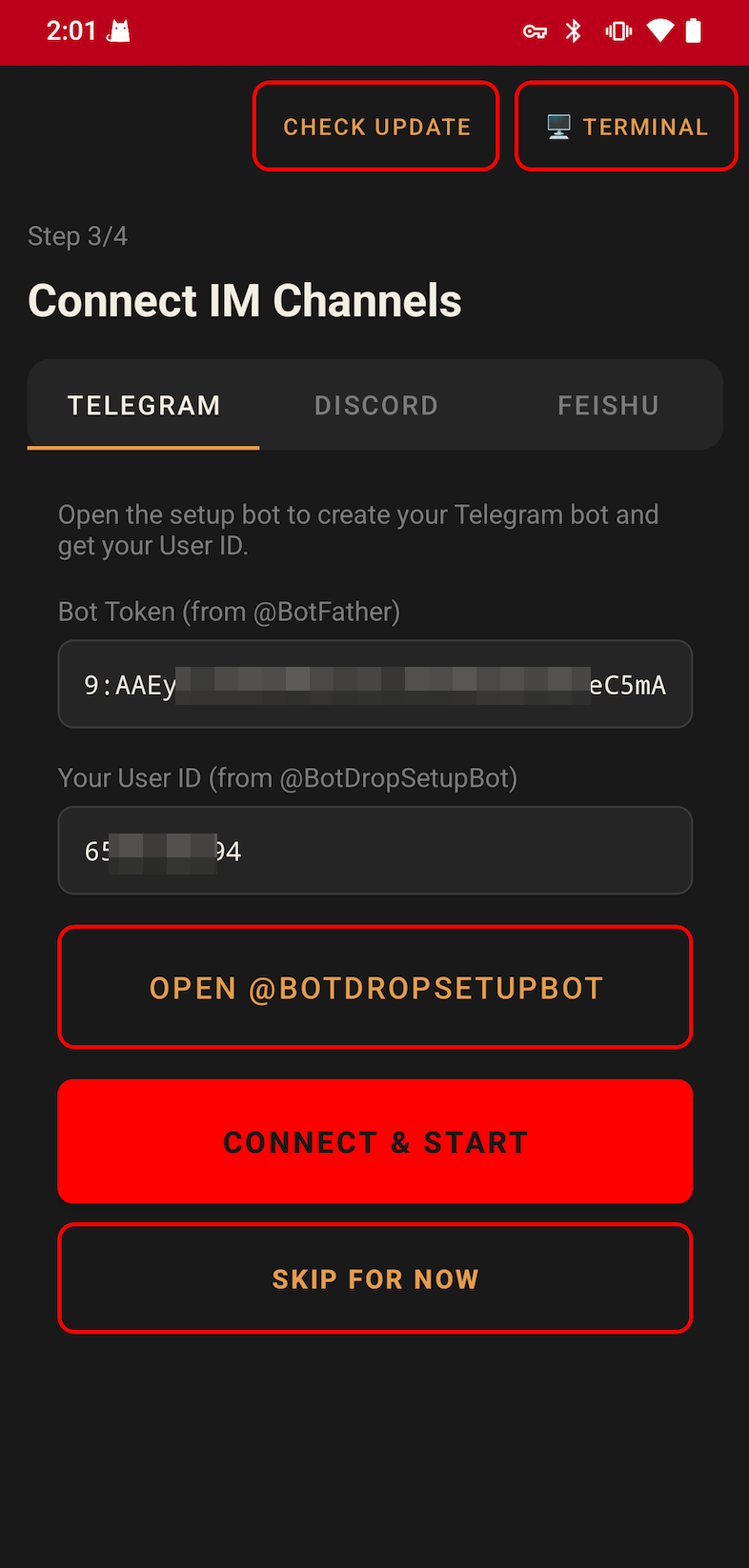
Tap CONNECT & START. Done.
Group Chats
Section titled “Group Chats”To use the bot in a group:
- Add the bot to the group
- Mention it with
@yourbotnameor set it as a group admin
Customization
Section titled “Customization”| Command | What it does |
|---|---|
/setuserpic | Set the bot’s profile picture |
/setdescription | Set the short description |
/setabouttext | Set the “About” text |
/setcommands | Define slash commands |
Troubleshooting
Section titled “Troubleshooting”| Problem | Solution |
|---|---|
| Bot doesn’t respond | Check that the gateway is running in BotDrop. Verify the token is correct. |
| Bot doesn’t reply in groups | Send /setprivacy to BotFather and set to Disabled. |
| Can’t find the bot | Search by the exact username you set (with _bot suffix). |